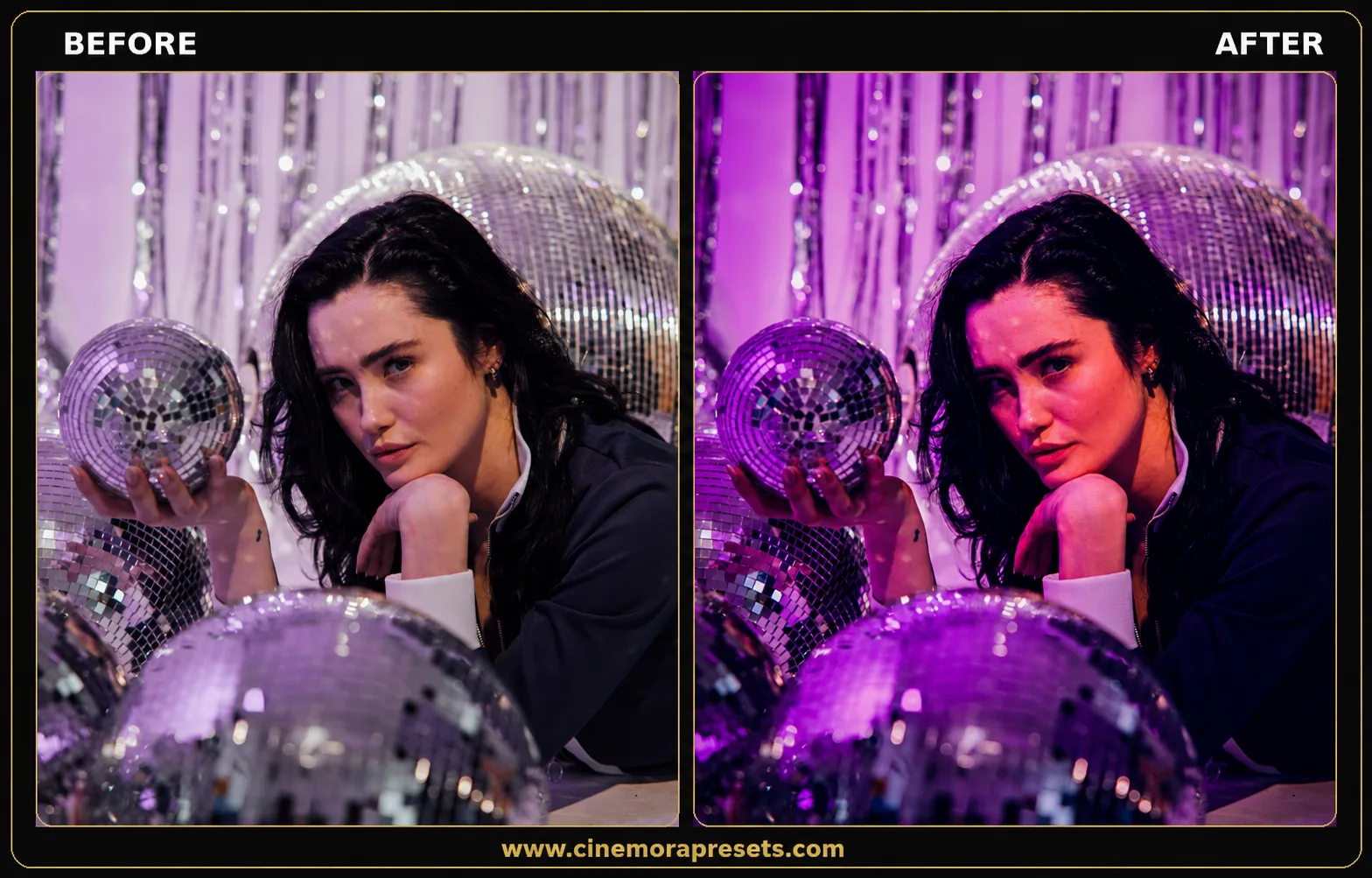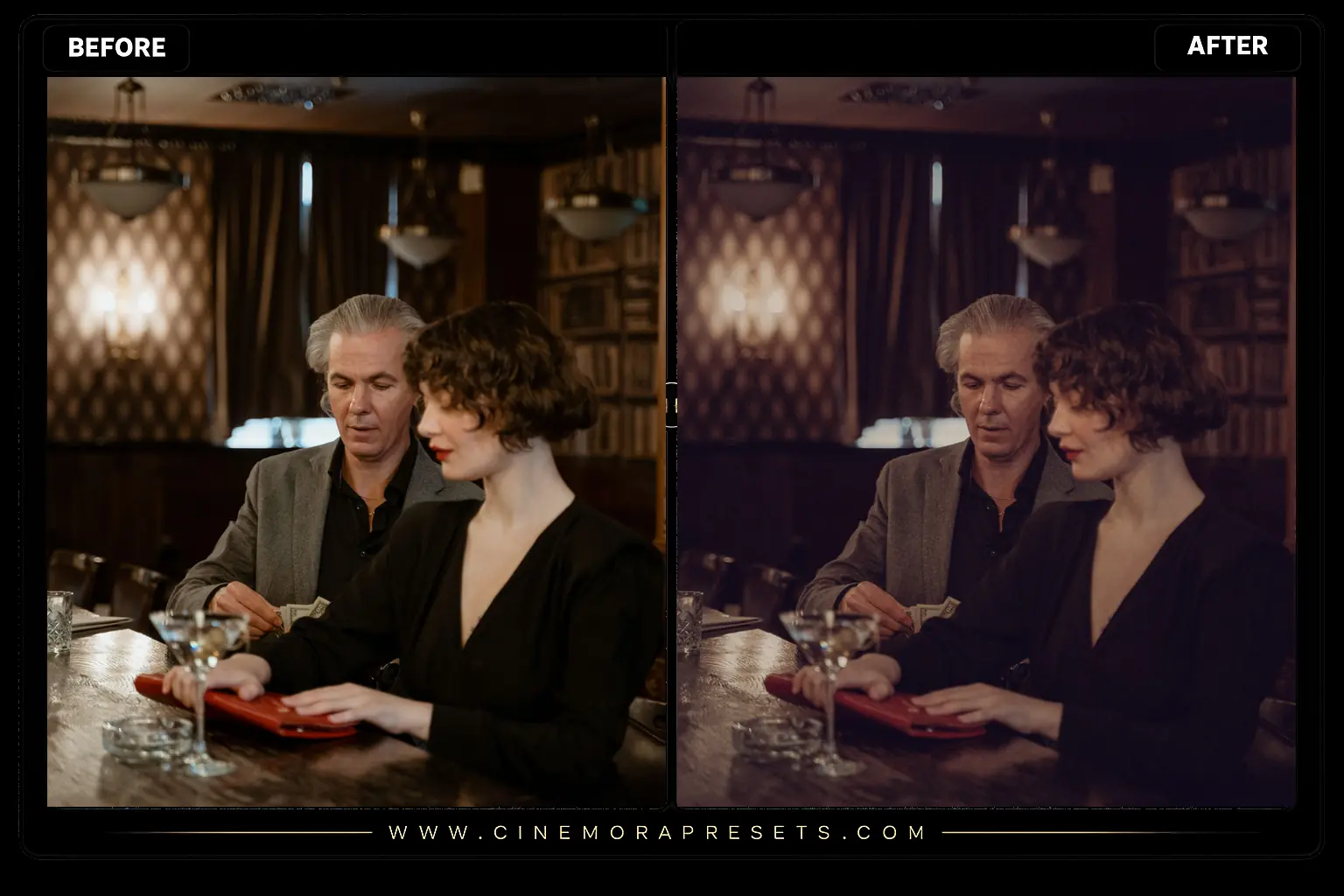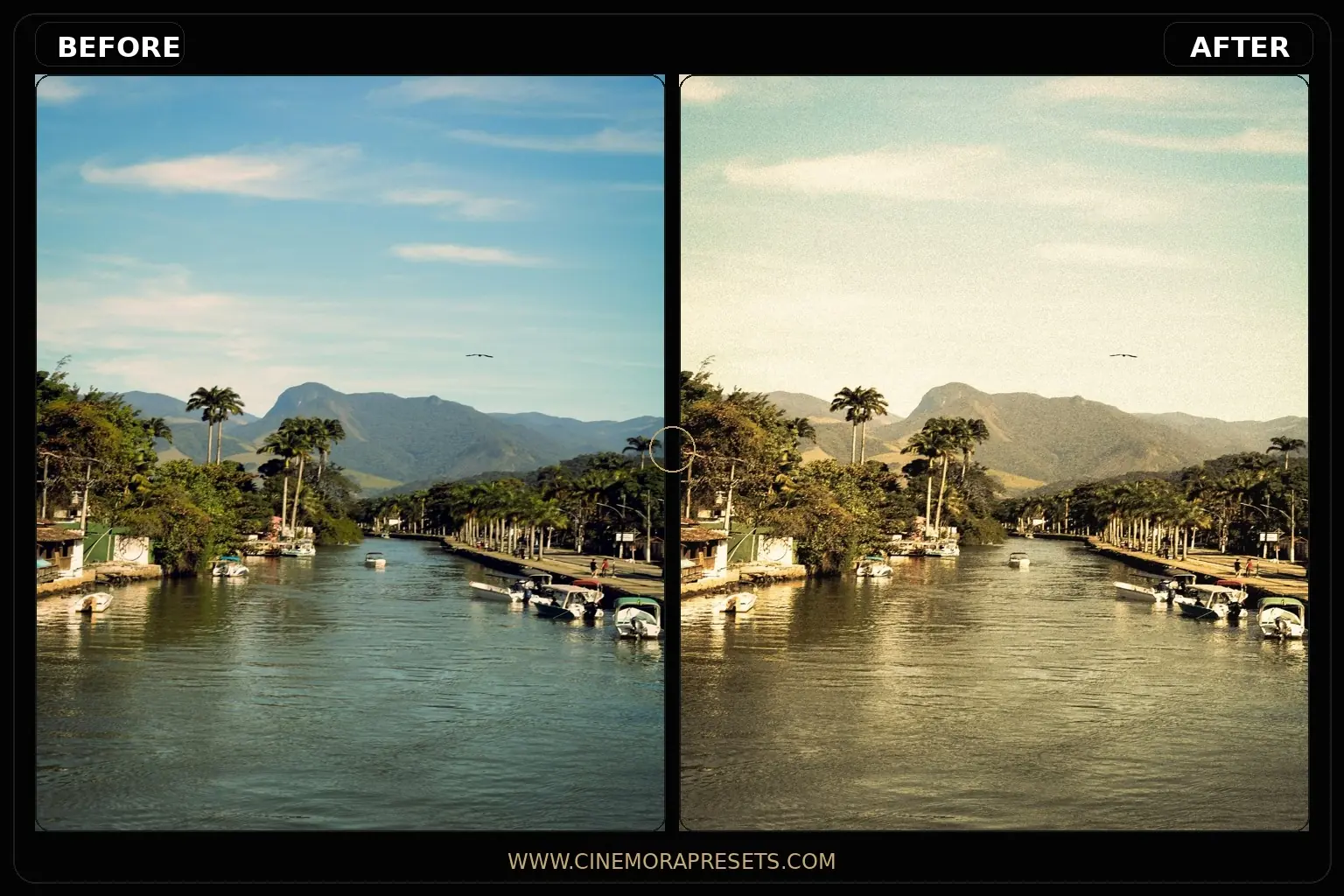
There is a deep sense of nostalgia in old printed photographs. The faded colors, the warm yellow tint, and the soft contrast remind us of family albums and quiet summer afternoons. I wanted to capture that nostalgic feeling and translate it into a modern digital workflow.
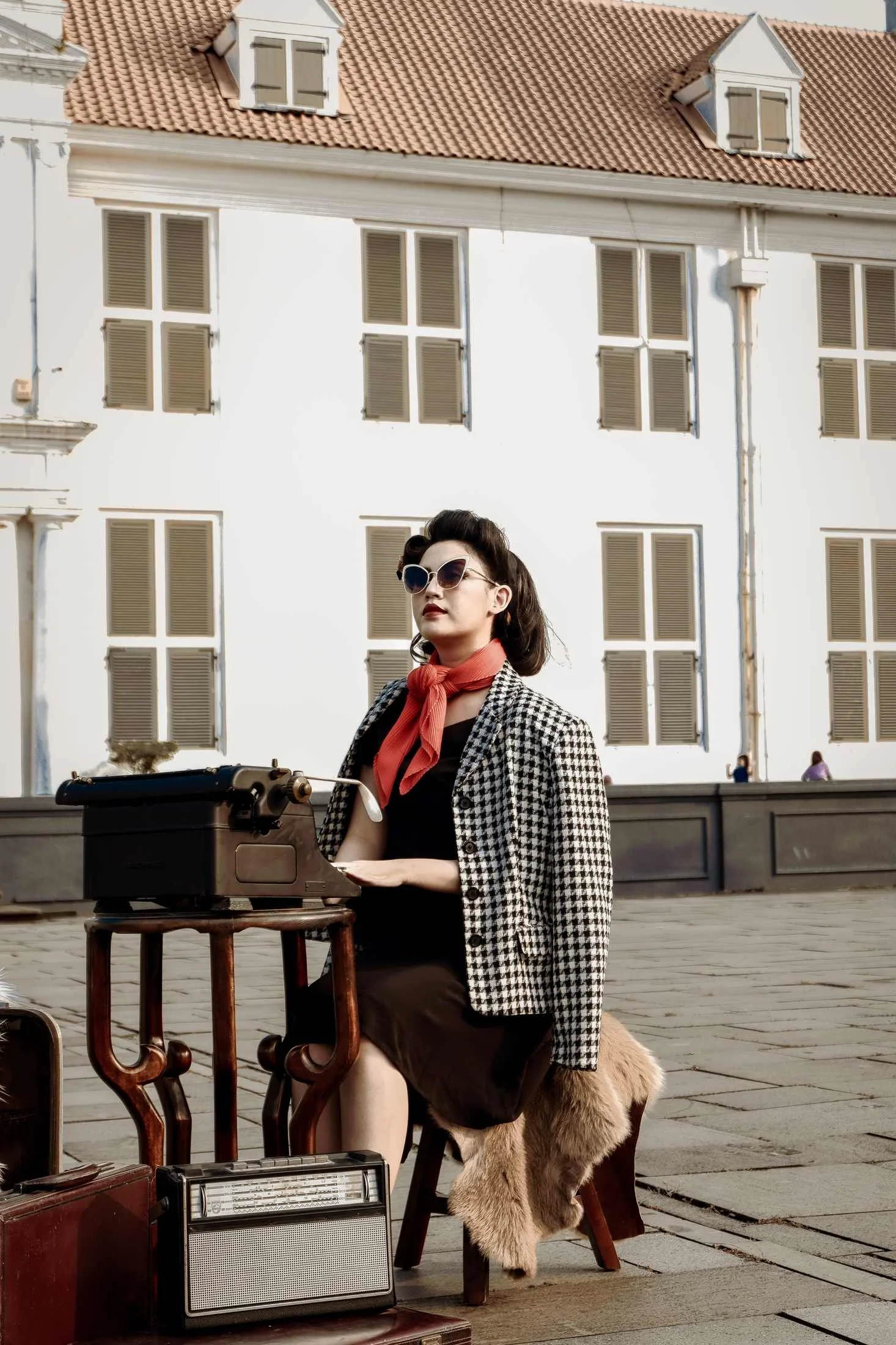
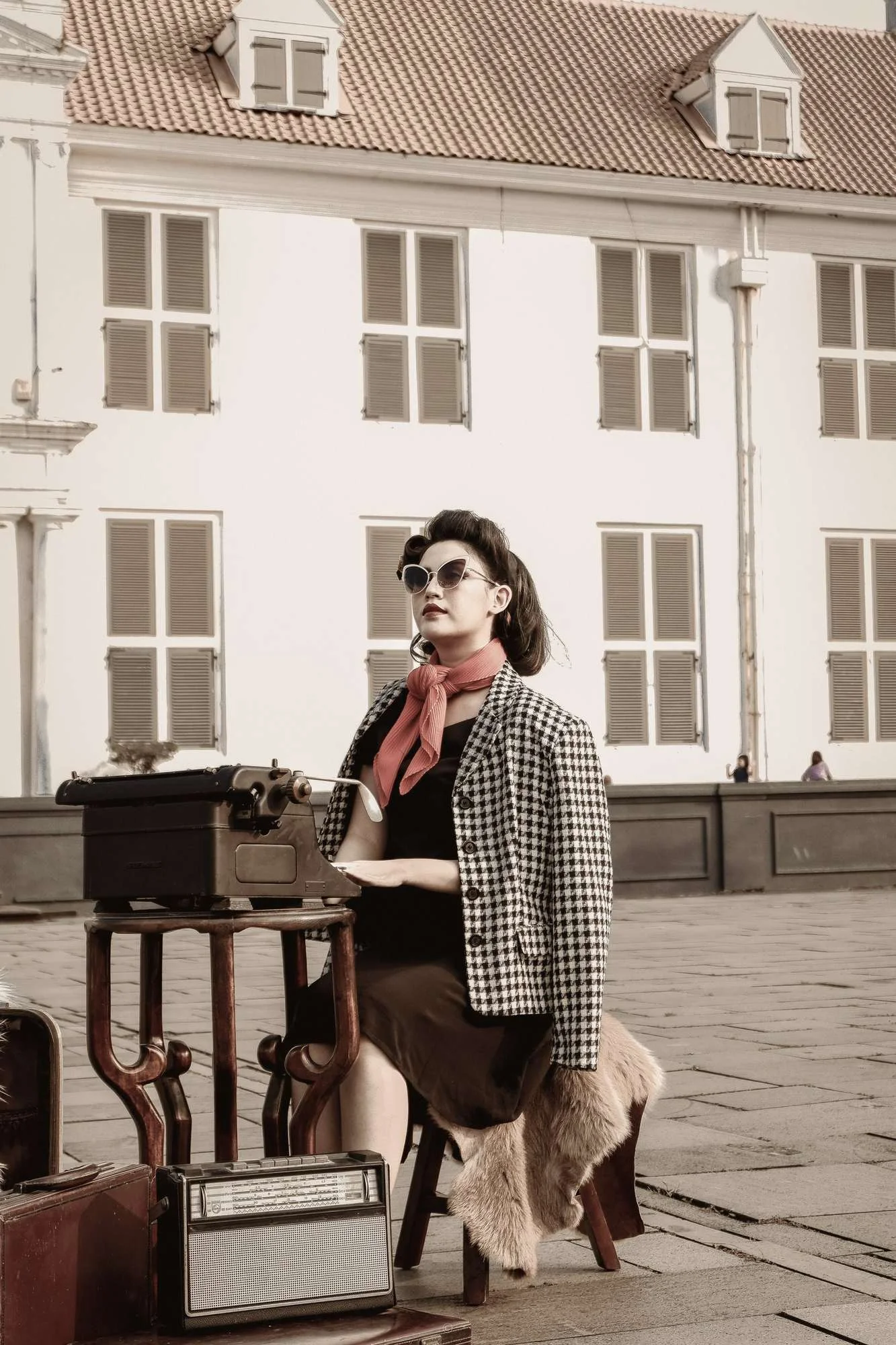
This pack of vintage presets is designed to replicate the classic retro aesthetic of the 70s, 80s, and 90s. I carefully balanced the RGB tone curve to fade the blacks and introduce warm amber highlights, giving your photos a gentle, aged feel without losing the underlying sharpness and detail of your modern camera lens.
To ensure these nostalgic color grades maintain their timeless feel, I have packaged these vintage presets in the universal XMP format. This allows the classic warm tones and faded curves to render exactly the same on your mobile phone as they do on a professional studio monitor, giving you consistent, vintage-style results anywhere.
Crafting a Nostalgic Retro Look
Creating a truly authentic vintage edit is about mimicking the natural chemical aging of print paper and film slides. When color dyes age, they slowly fade and yellow over decades.
Here is how to get the most authentic retro look with these presets:
Retro Vintage Warmth Lightroom Preset Settings & Slider Values
Exposure: -0.70 | Contrast: +28 | Highlights: +38 | Shadows: +70 | Whites: +28 | Blacks: +22 | Temp: +28 | Tint: +6 | Texture: +12 | Clarity: -22 | Saturation: -16 | Grain: +22 | Vignette: -14
For other vintage and analog grain styles, check out our authentic Fuji Film presets.
1. Shift Hue Values in the Color Mixer
Older color films shifted specific hues:
- Reds shifted towards orange.
- Blues shifted slightly towards cyan.
- Greens shifted towards warm yellow-green. These presets apply these beautiful color shifts automatically. If you want an even older look, slightly shift the Hue of Red towards Orange in the HSL panel.
2. Matte Shadows Tone Curve
The vintage look relies on faded blacks. Open the Tone Curve, place a point in the middle, and lift the absolute bottom-left point upwards. This lifts your pure blacks and converts them into a beautiful, faded charcoal-gray color.
3. Add Soft Vignetting
Old camera lenses had natural light falloff at the edges. Adding a subtle, soft vignette in Lightroom under the Effects panel can beautifully frame your subject, pulling the viewer's eyes directly into the center of your nostalgic frame.
Installation Guide
Setting up these presets on your phone or computer is very simple:
- Download the ZIP file containing the XMP preset files.
- If you need step-by-step instructions for your specific device, follow my guide on how to install Lightroom presets for instant setup help.
What's Included
This nostalgic vintage collection contains free distinct XMP presets designed to give your photos a retro, timeless aesthetic. Inside the zip you will find:
- Warm Nostalgia Presets (perfect for golden hour, warm tones, and sun-kissed memories)
- Retro Film Presets (featuring cool, faded shadows and warm yellow-orange highlights)
- Faded Polaroids (mimicking the soft contrast and classic cyan/yellow color shifts)
Preset Style & Color Tone
These presets are built around a warm, nostalgic color palette. Shadows are raised and faded to create a soft matte texture, and a warm yellow or peach tint is added to the highlights. Primary colors like yellow, red, and orange are gently enhanced, while blues and greens are pushed towards softer, pastel hues.
Best Photos for This Preset
This pack looks incredible on lifestyle photography, travel adventures, beach days, and outdoor portraits. It also works beautifully on vintage cars, rustic interiors, and street scenes shot in warm, natural sunlight.
After downloading, extract the ZIP file and import the XMP presets into Lightroom.