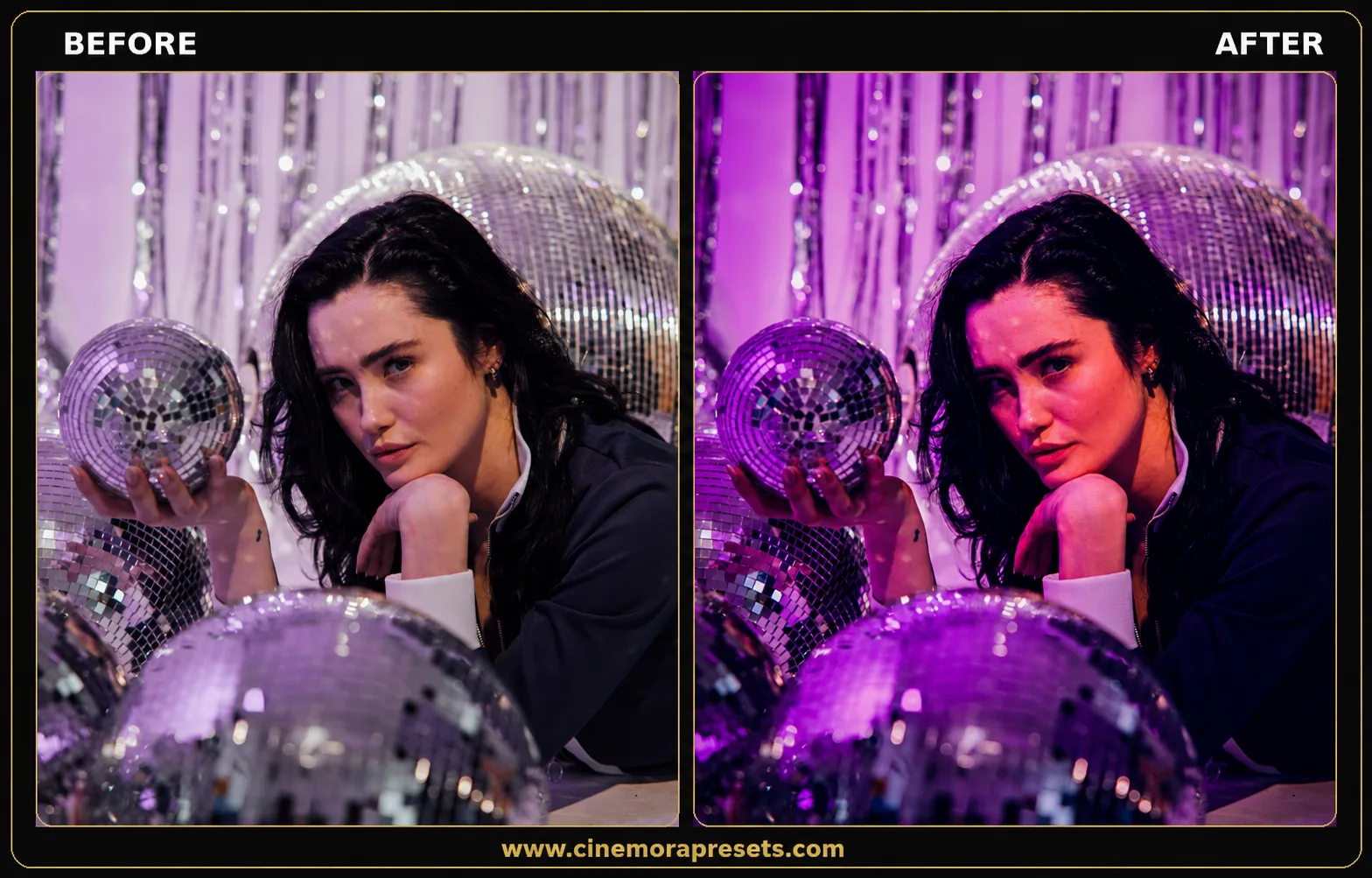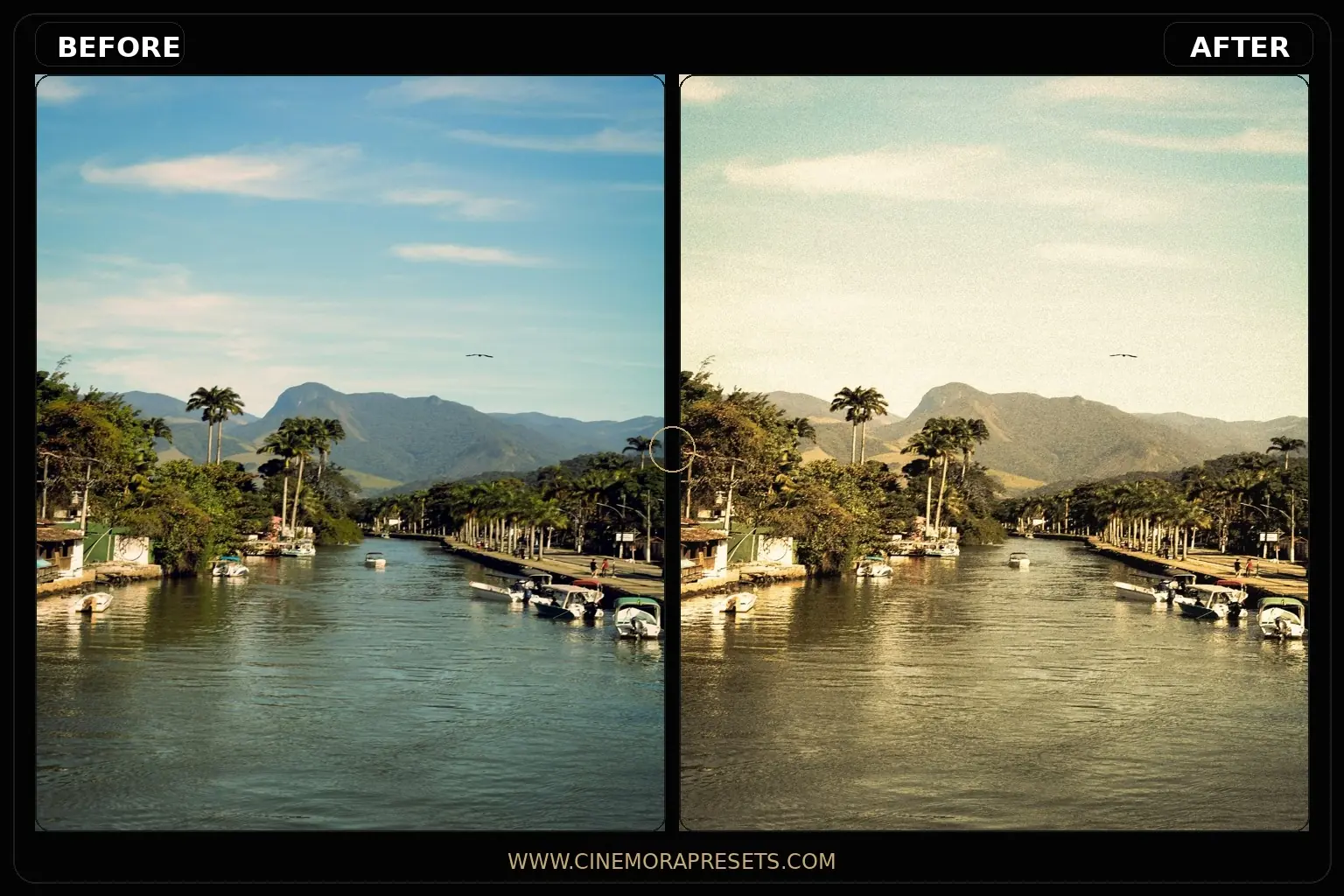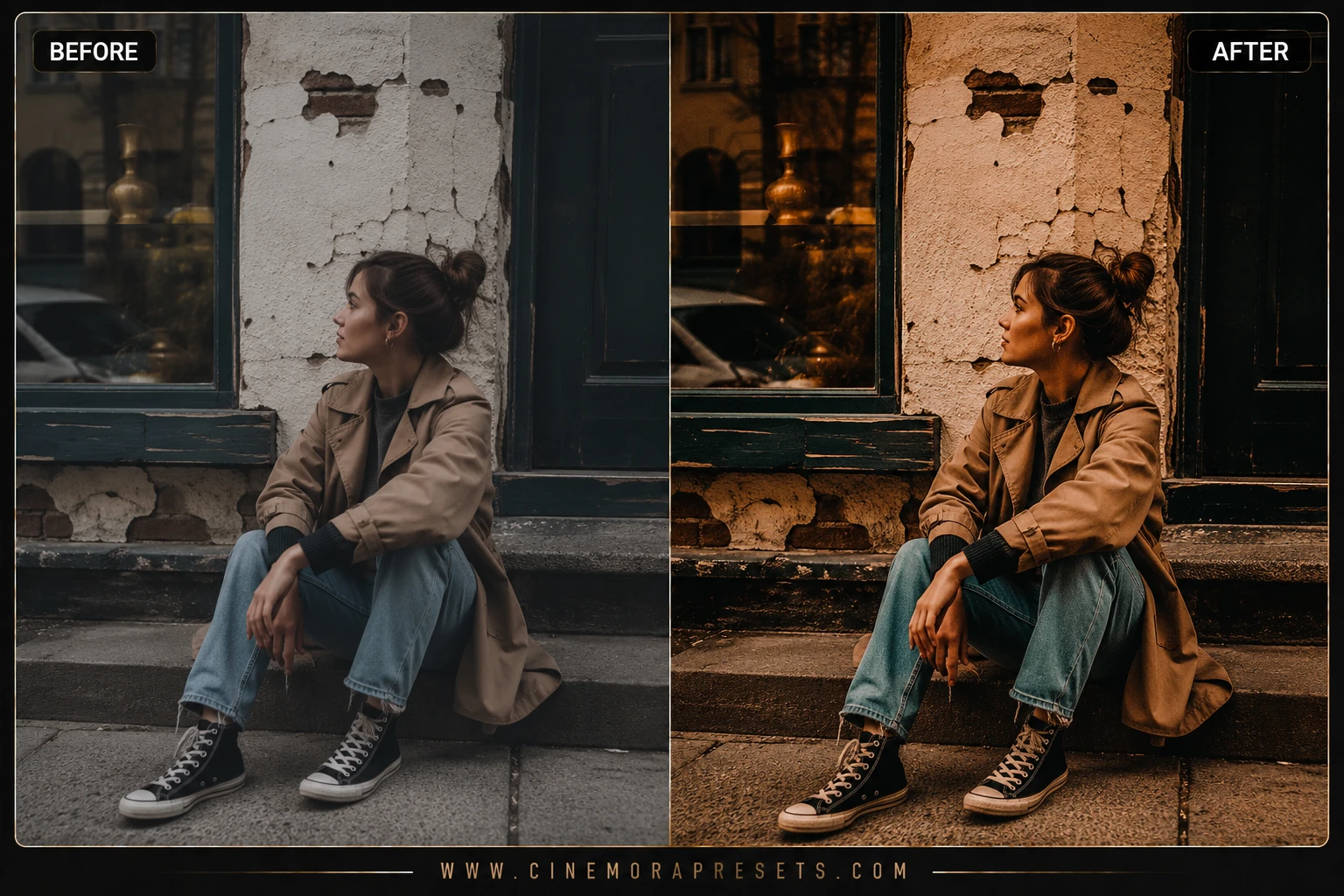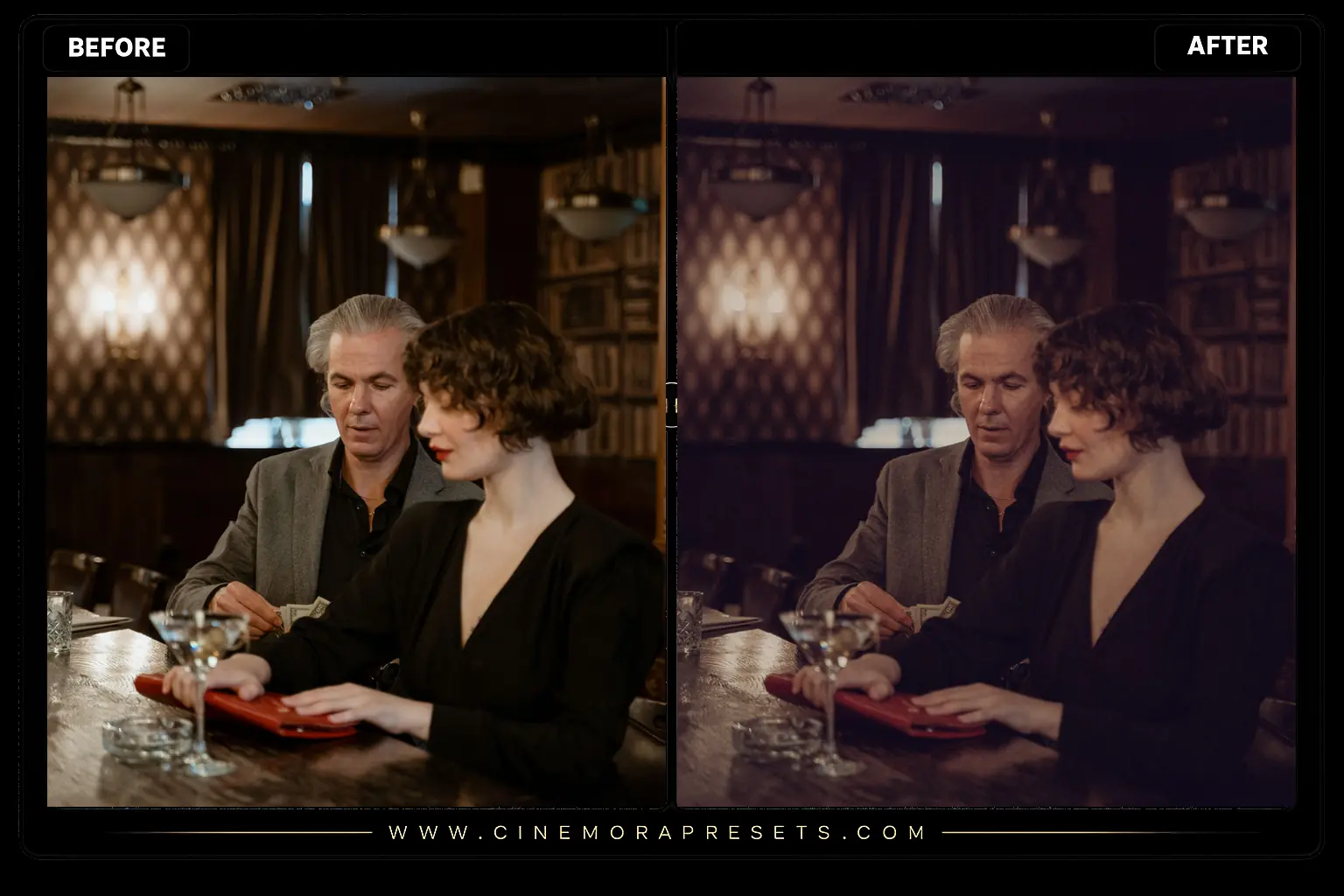
The "old money" aesthetic is all about quiet luxury, clean styles, and muted tones. I created this preset pack to help you get that classy, vintage look instantly without overcomplicating your edits. If you want your photos to look like they were taken at an expensive estate on a retro film camera, these presets are exactly what you need.
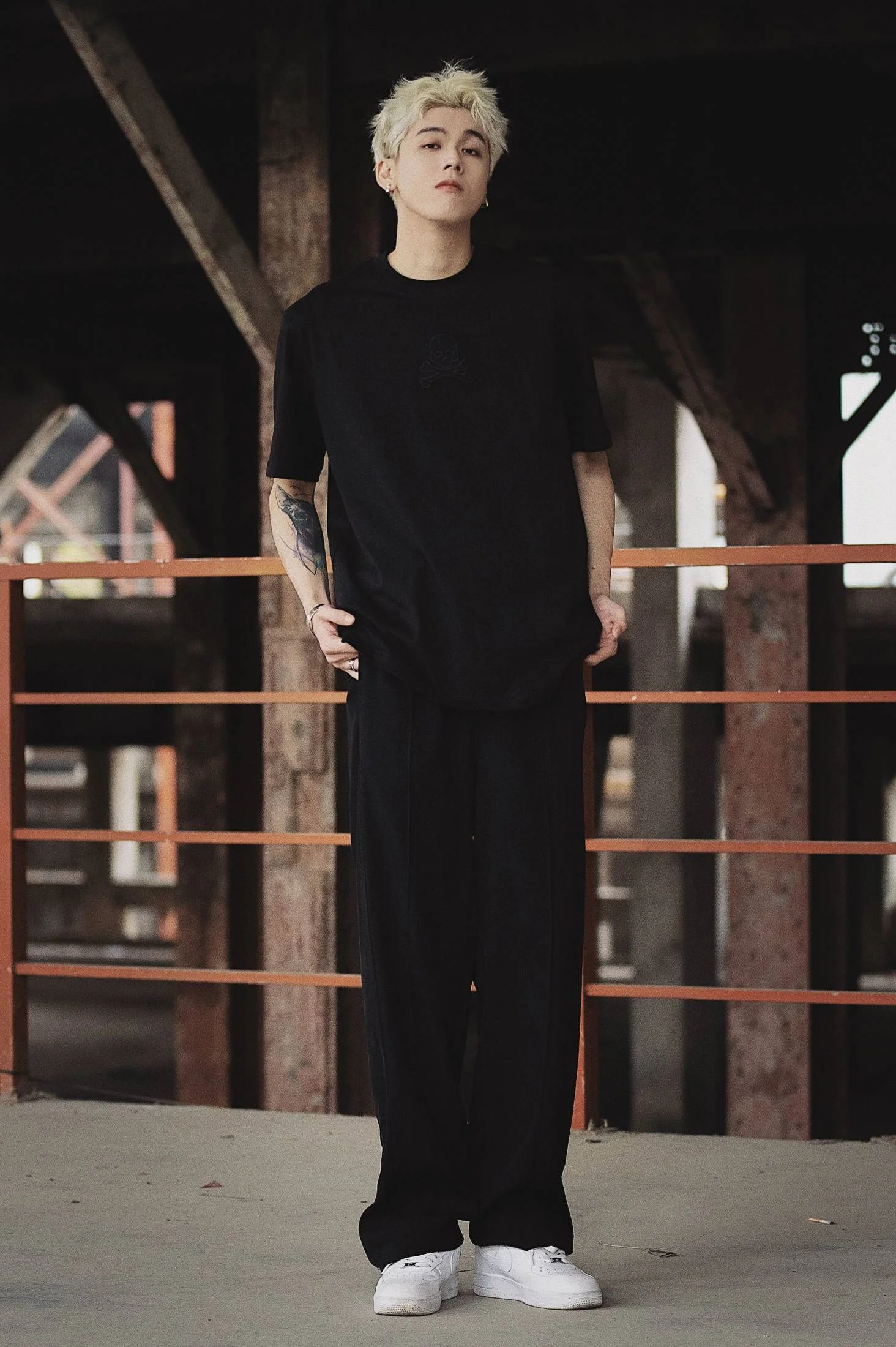
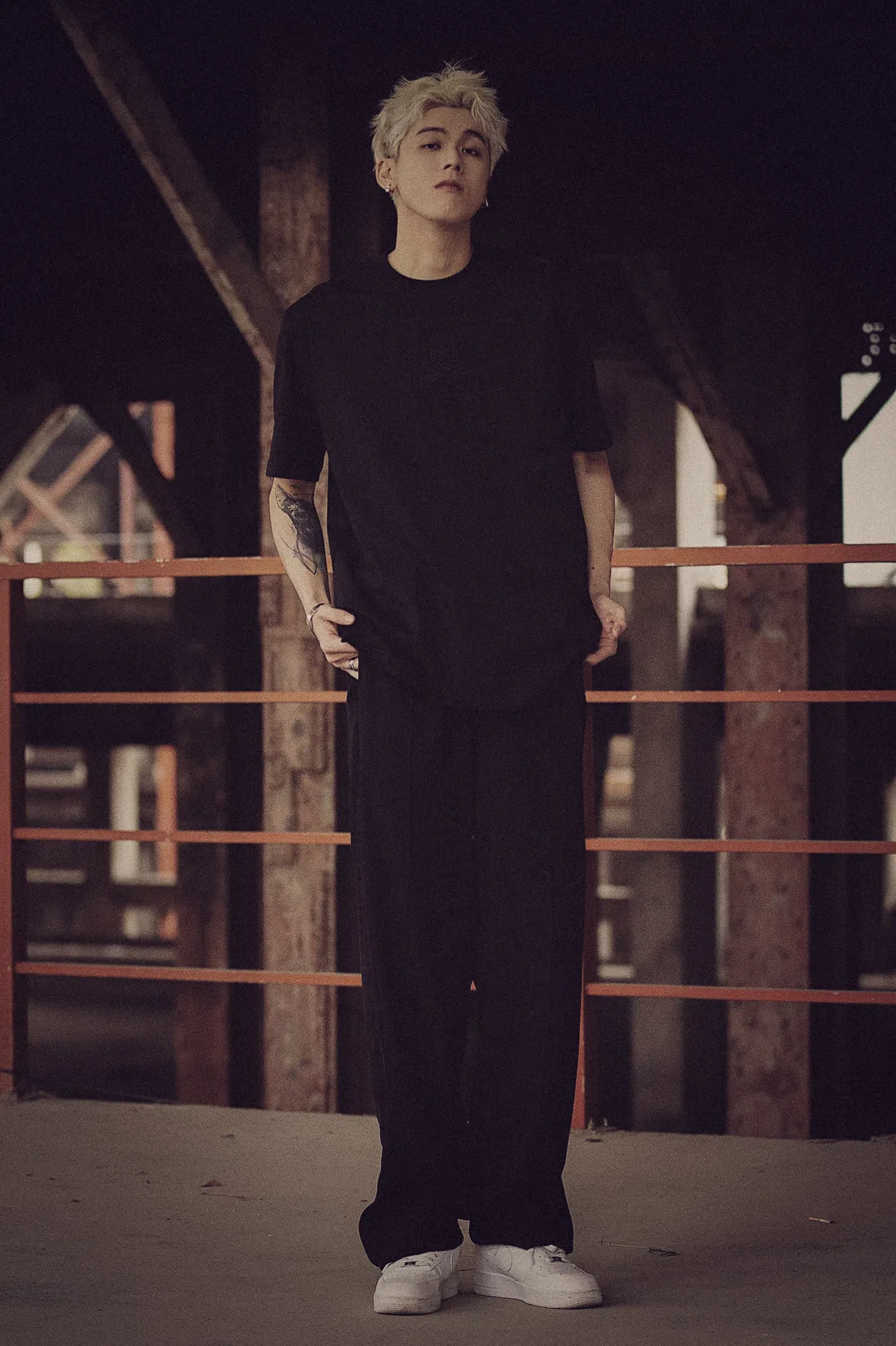
What Changes After Applying the Preset?
Once you apply these presets, you'll notice a few main shifts in your photos:
- Muted Highlights: Bright whites (like linen shirts, stone walls, or bright skies) lose their harsh digital glare and get a softer, creamier film roll-off.
- Warm, Flattering Skins: Skin tones are warmed up and smoothed out, making them look healthy and sun-kissed.
- Muted Greens & Blues: Neon greens and bright blues are desaturated and shifted toward organic, warm olive and deep navy tones.
Old Money Lightroom Preset Settings & Slider Values
Exposure: +0.10 | Contrast: 0 | Highlights: -20 | Shadows: +35 | Whites: -15 | Blacks: +20 | Clarity: -15 | Saturation: -12 | Grain: +18 | Vignette: -10
If you like this aesthetic, you can also pair these with our warm Golden Hour presets.
Installation Guide
Setting up these presets on your phone or computer is very simple:
- Download the ZIP file containing the XMP preset files.
- If you need step-by-step instructions for your specific device, follow my guide on how to install Lightroom presets for instant setup help.
What's Included
This collection comes with custom XMP preset files designed to give your photos a polished, editorial look. Here is what is in your free download:
- Warm Contrast Filters (adds rich contrast and golden tones to neutral outfits, architecture, and skin tones)
- Soft Highlight Filters (compresses bright highlights to give white linen and stone walls a creamy, matte roll-off)
- Muted Organic Filters (desaturates neon greens and bright blues while adding a subtle analog film grain)
Preset Style
The overall style is warm, muted, and very clean. Neon and highly saturated colors are toned down to keep the frame cohesive. Highlights are softly rolled off to give bright whites a creamy, print-like texture, and the shadows are lifted slightly to keep details visible.
Best Photos for This Preset
These work best on outdoor travel photos, clean neutral-colored outfits (like beige, cream, navy, and white), classic architecture, and cafe setups. They perform best when there is plenty of natural light and minimal color clutter in the frame.
After downloading, extract the ZIP file and import the XMP presets into Lightroom.