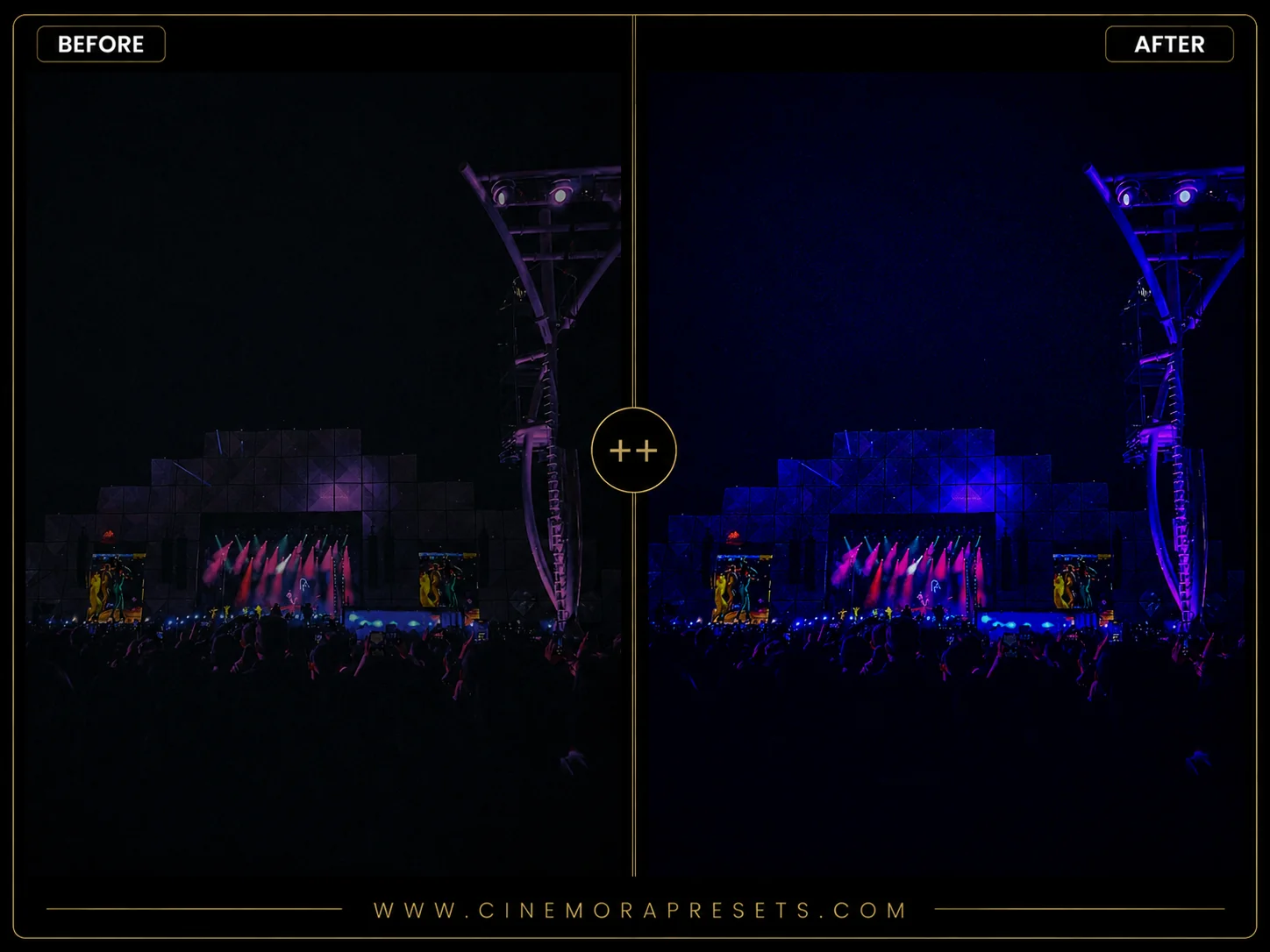
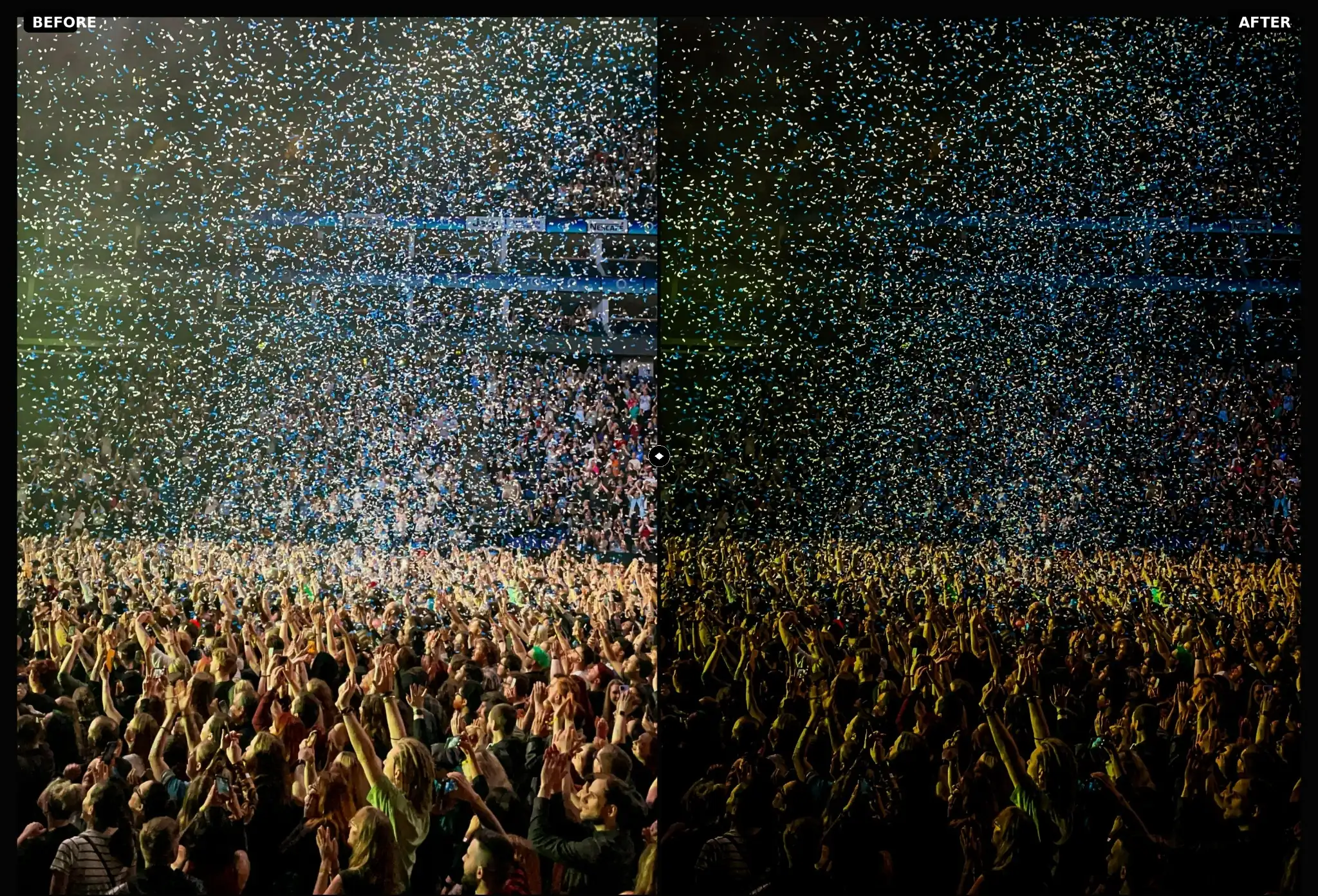
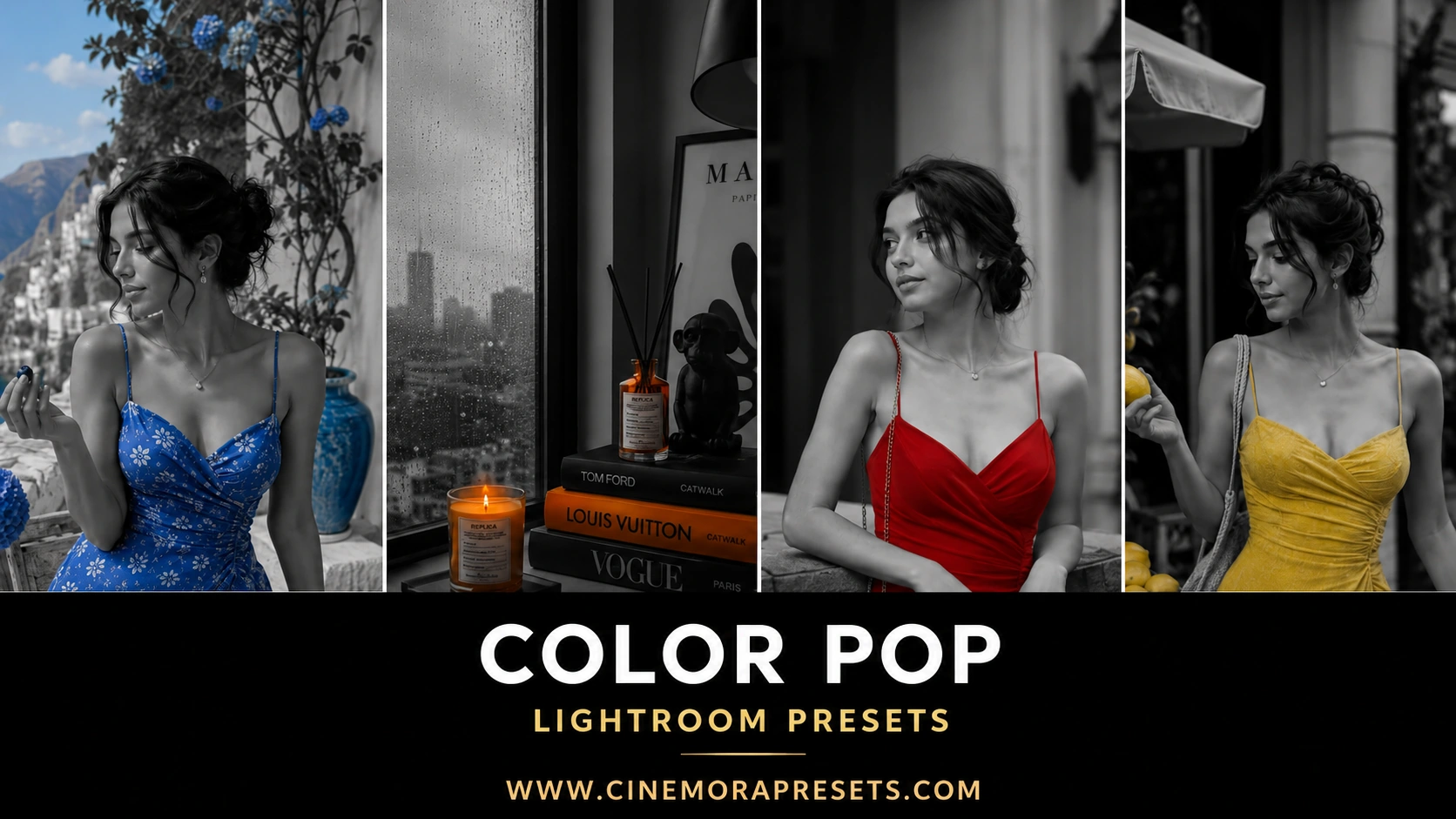
The legendary 'Teal and Orange' color grade is the gold standard of cinema. By placing cool, deep teal shadows in contrast with warm, glowing orange highlights, you create maximum visual interest. As a filmmaker, I wanted to bring this exact Hollywood color chemistry to still photography.
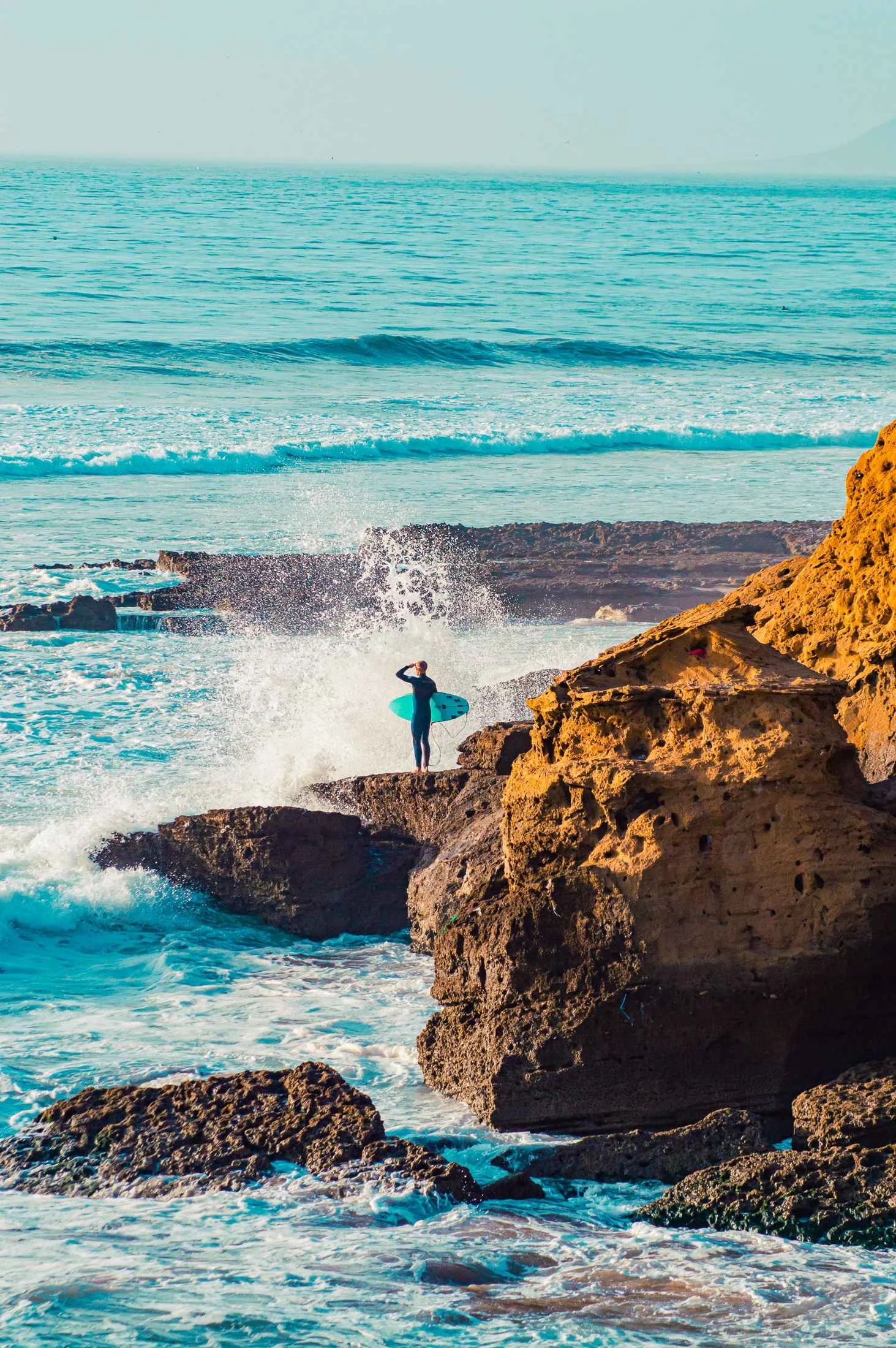
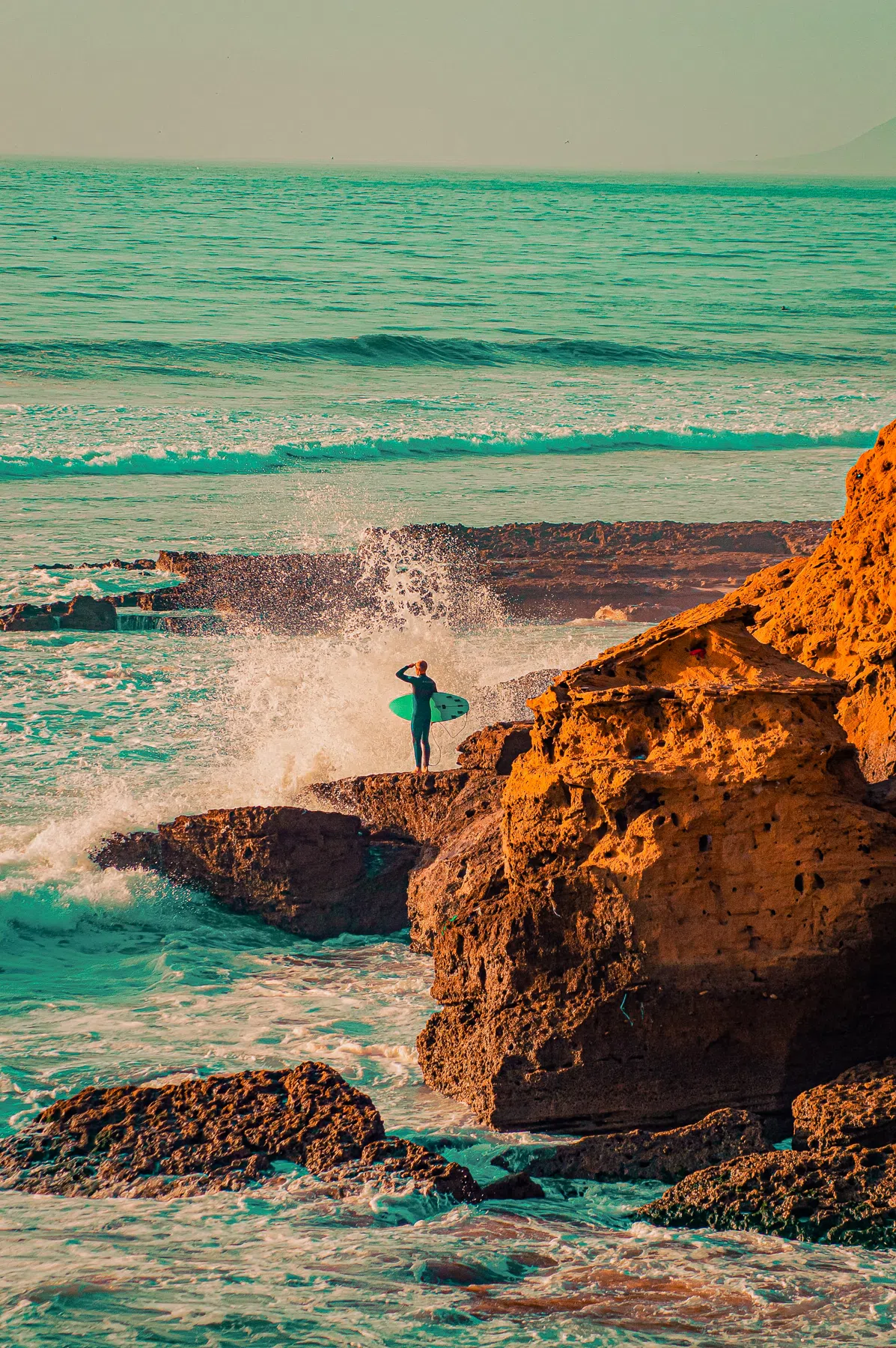
I spent months fine-tuning these presets on hundreds of different RAW files to make sure the color separation is clean. It's easy to make a photo look over-saturated and cheap; the secret is delicate color wheels that keep skin tones completely natural while rendering rich, movie-like backgrounds.
This premium cinematic collection is formatted as universal XMP files, ensuring that the beautiful teal/orange contrast and soft highlights sync identically between your desktop monitor and mobile apps.
The Hollywood Teal & Orange Color Science
Teal and orange works because it utilizes complementary color theory. Orange represents the human skin tone, and teal sits directly opposite it on the color wheel. By placing cool, deep teal shadows in contrast with warm, glowing orange highlights, you create maximum visual separation and cinematic depth.
This style shifts harsh, digital primary colors into cool cyans and warm ambers, rendering rich, movie-like backgrounds while keeping natural skin tones protected and clean under any light.
What's Included (6 Lightroom Presets)
This industry-grade pack contains six distinct presets, each calibrated to recreate professional movie looks under different lighting scenarios:
- 01 - Natural Orange Pop: Balances cool shadows and warm highlights, perfect for daytime portraits and lifestyle shots.
- 03 - Desert Dunes: Warm, sunny grading that enhances amber tones, ideal for sunset and beach travel shots.
- 05 - Cinematic Amber: Deepens the teal contrast in the shadows while giving midtones a rich, warm glow.
- 07 - Soft Glow: Softens highlights and digital edge sharpness for a dreamy, filmic skin texture.
- 08 - Rustic Sunset: Heavy color separation with deep shadows, calibrated specifically for golden hour photography.
- 10 - Orange Velvet: Fades the black points for a modern matte finish, great for urban cityscapes.
Best Images for This Preset
These presets look incredibly dramatic on night city streetscapes with glowing lights, sunny golden hour portraits, travel landscapes, and beach shots.
However, they require some warm light or warm tones in the photo (like skin, sand, sunset light, or streetlamps) to create the contrast. If you apply them to a flat, completely gray cloudy scene with no warm light source, the color grade won't have the chemistry it needs to pop.
Technique Tips
Here are my top professional workflow tips for getting the perfect movie look:
1. Look for Warm Light Sources
This preset pack relies on having warm tones in your photo. If you apply it to a flat, completely gray cloudy scene, there won't be any orange to contrast the teal.
2. Utilize the Color Grading Wheels
Lightroom's Color Grading panel is where the magic happens. Use the Shadows wheel to introduce cool cyan tones, and use the Highlights wheel to add warm orange-yellow tones.
3. Fade the Shadows
To give your photos a premium, expensive movie look, lift the black point on the Tone Curve slightly. This softens the heavy blue shadows, making them look soft and cinematic.
[!TIP] To explore more film-style color grades, try out our Cinematic Lightroom presets or Fujifilm simulations.
After downloading, extract the ZIP file and import the XMP presets into Lightroom.