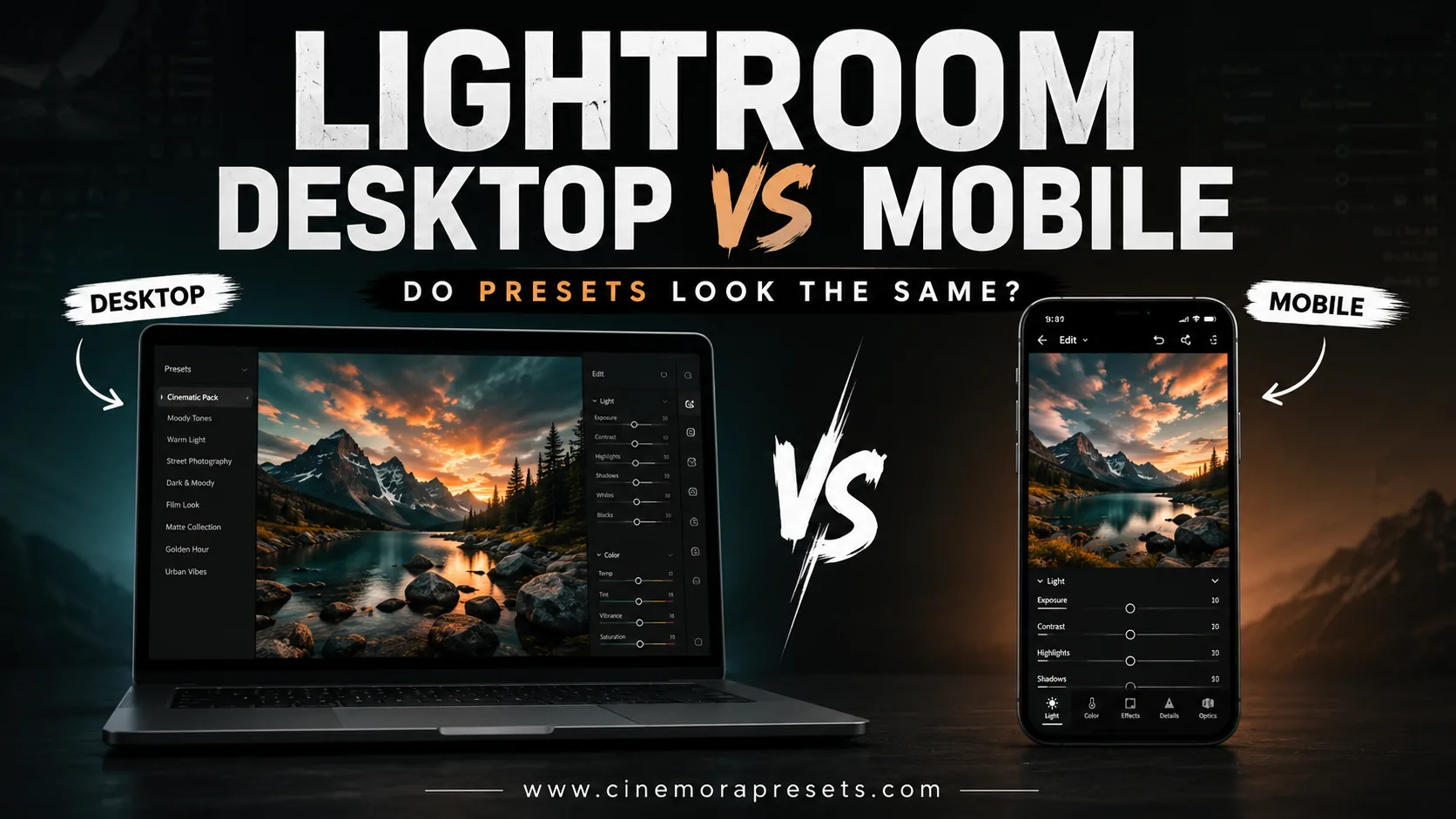
TL;DR: Yes, Lightroom presets can be used on Lightroom Mobile, but they might not look exactly the same as they do on your computer. Even though both apps run on Adobe's core processing engine, small differences in software updates, camera color science, and screen calibration can cause colors and tones to shift between devices.
The Short Answer
Yes, you can easily transfer Lightroom presets to Lightroom Mobile. They will apply the exact same slider changes, but the final photo might not look identical on both screens.
At the end of the day, a preset is just a set of instructions. Because of this (as we explore in our comparison of XMP vs DNG Presets), the final image depends heavily on the camera file you are editing, the version of the app you're running, and the screen you are looking at.
Why People Assume They're Identical
It's completely natural to assume presets will work exactly the same way on your computer and phone because both platforms run on Adobe's Camera Raw engine.
When you apply a preset on your desktop, it moves sliders like Exposure, Contrast, and HSL to specific numbers. When you sync that preset to your phone, it applies the exact same math.
Because the underlying math is identical on both devices, your starting point is theoretically the same.
Where They Actually Differ
Even though they share the same engine, a preset applied on desktop and mobile can look slightly different in the real world. This usually boils down to software updates, camera profiles, and screen calibration.
Here is a quick look at how the two platforms compare:
| Feature | Lightroom Desktop | Lightroom Mobile |
|---|---|---|
| Preset Sync | Automatic via Creative Cloud | Cloud Sync or manual DNG import |
| Engine Updates | Gets new ACR engine features first | Receives updates later |
| Camera Profiles | Full access to manufacturer profiles | Standard or basic conversion profiles |
| Screen Calibration | Supports hardware calibration | Limited to phone system color profiles |
Processing engine version gaps
Adobe constantly updates Lightroom, and these new features and engine tweaks almost always land on Lightroom Desktop first.
If your desktop app is running a newer version of the processing engine than the mobile app, certain advanced adjustments—like complex masks or specific color grading tools—might not render the same way on your phone.
In some cases, these settings might even be temporarily disabled on mobile until the app gets the latest update.
Camera profile differences
The type of file you are editing plays a massive role in how a preset behaves. Mobile phone RAW photos (like Apple ProRAW or Samsung Expert RAW) handle color, dynamic range, and noise differently than DSLR or mirrorless RAW files. If you want to know more about how shooting formats impact your adjustments, check out our guide on JPEG vs RAW for Lightroom Editing.
When a preset built and tested on a Sony or Canon RAW file is applied to an iPhone DNG, the phone's native lens corrections and computational color science interact with the preset's sliders differently. This interaction often causes subtle color shifts, especially in the skin tones and shadows.
Screen calibration
Even if the underlying file data and slider settings are absolutely identical, the image will look different to your eyes simply because of how screens work.
A quality computer monitor can be calibrated to show highly accurate, neutral colors.
In contrast, smartphone screens are often tuned to make colors look vivid, saturated, and punchy in varied outdoor lighting. This means a warm, subtle edit on your computer might look overly contrasty or yellow on your phone screen.
What This Means for Your Photos
For your day-to-day editing, this means a preset built for a professional Sony RAW file might shift in color or contrast when applied to an iPhone photo. This is one of the main reasons why Lightroom presets can look different on every photo, rather than being a failure of the preset itself.
If you notice a color shift on your mobile edits, it's usually because the phone's built-in profile has a different baseline saturation or tint.
To fix this, you just need to tweak the temperature, tint, and HSL sliders to align the mobile photo with your style.
How to Get Closer to a Consistent Result
To get a matching look across both devices, make sure to install the modern XMP version of your presets on both apps.
Next, always adjust your white balance before applying the preset, as mobile phone cameras have much more volatile auto white balance than DSLRs.
Instead of expecting a single click to produce a flawless result, treat the preset as a starting point. Be ready to make minor manual tweaks to exposure, shadow recovery, and skin tone saturation on a photo-by-photo basis.
When the Difference Actually Matters
Whether these visual differences actually matter depends entirely on what you plan to do with your images.
If you are just sharing photos on Instagram or editing casual travel memories, the slight color shift between your computer and phone is minor and won't be noticed by anyone else.
But if you are delivering galleries to paying clients, preparing images for print, or maintaining a commercial brand identity, the difference is critical. Always verify your final edits on a calibrated desktop display before sending them off.
Bottom Line
While Lightroom presets transfer seamlessly between desktop and mobile, expecting them to look 100% identical is unrealistic due to hardware, profile, and screen differences.
The best approach is to treat Lightroom Mobile as a convenient tool for editing on the go and getting your images close to their final look, rather than a perfect replacement for a calibrated desktop workspace.
If you want a smooth editing experience across both devices, our Lightroom Presets are designed to work beautifully on both platforms, giving you a consistent foundation no matter where you edit.
Related Guides
- XMP vs DNG Lightroom Presets: Which Format to Use?
- Why Do Lightroom Presets Look Different on Every Photo?
- JPEG vs RAW for Lightroom Editing: Which is Better?
Frequently Asked Questions
Do Lightroom presets look the same on mobile and desktop?
Not always. Even though the same slider adjustments are applied, variations in screen calibration, app versions, and camera color science can cause minor differences in how the final photo looks on your phone compared to your computer.
Why do presets look different on phone photos than camera photos?
Mobile RAW files (DNG) use computational photography and distinct native color profiles compared to DSLR or mirrorless RAW files. A preset built for a camera sensor will interact differently with a phone sensor's raw data.
Can I use desktop Lightroom presets on Lightroom Mobile?
Yes. Modern presets use the standard XMP format, which syncs automatically through your Adobe Creative Cloud account or can be imported manually into the Lightroom Mobile app.
How do I make my mobile and desktop Lightroom edits match?
Start by using the modern XMP version of your presets, adjust the white balance first to fix camera-specific color casts, and make minor manual adjustments to exposure and saturation on your phone.
Does Lightroom Mobile have the same features as desktop?
Lightroom Mobile includes almost all core editing sliders and masking tools, but major new engine updates and advanced features are sometimes released on the desktop app first.