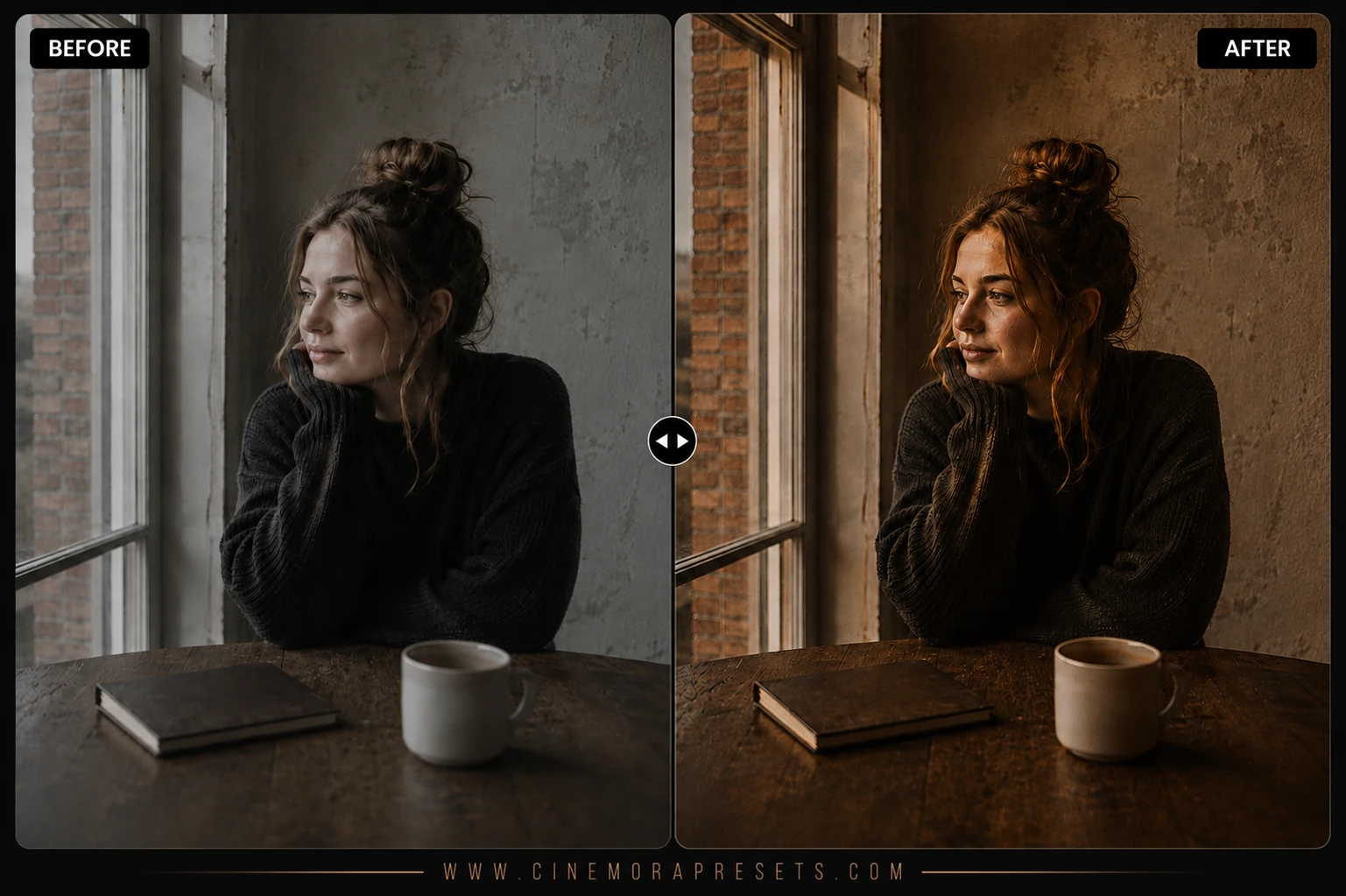
I have always loved the cozy atmosphere of a local coffee shop on a rainy afternoon. There is something incredibly peaceful about the warmth of fresh brew, warm wood textures, and soft ambient light. I created this pack of Warm Coffee presets to help you bring that rich, hazelnut-toned editorial feel to your photos.


These filters are designed to soften bright highlights, lift the shadows slightly, and wash your photos in beautiful, rustic brown and chocolate undertones. They are perfect for cafe flat lays, casual lifestyle snapshots, warm indoor portraits, and minimalist fashion grids.
To ensure your visual feed looks cohesive on every screen, these cozy presets are delivered in the modern, universal XMP format. They apply identical, high-fidelity color grading and matte curves seamlessly across both your mobile device and desktop Lightroom apps without any hassle.
Master the Cozy Coffee Aesthetic
Creating a beautiful, warm coffee grid is about controlling color harmony and highlight brightness. Here is how to make these presets look incredibly premium on your feed:
Cozy Espresso Lightroom Preset Settings & Slider Values
Exposure: -0.10 | Contrast: +18 | Highlights: -8 | Shadows: +12 | Whites: 0 | Blacks: -2 | Temp: +8 | Tint: +2 | Texture: +10 | Clarity: -2 | Saturation: -5
If you want to maintain a warm aesthetic on your feed, match these cozy espresso tones with our sandy Beige Aesthetic presets.
1. Control Your Exposure
Warm brownish edits look best when they are slightly underexposed. If your photo looks too bright or flat after applying the preset, pull down the Exposure slider by -0.15 to -0.30 to make the deep chocolate shadows look rich and velvety.
2. Desaturate Conflicting Colors
If you have cold highlights, blue objects, or bright yellow lightbulbs in your scene, they can break the warm brown coffee vibe. Go to the HSL panel and selectively desaturate the Blue, Green, and Yellow channels to isolate the cozy coffee aesthetic.
3. Use Natural Warm Light
These presets work best when applied to photos shot under warm, natural light (like window light or overcast outdoor shadows). If your photo was shot under cold fluorescent office light, adjust the Temperature slider towards the warm (yellow) side to give the preset a proper foundation.
Installation Guide
Setting up these presets on your phone or computer is very simple:
- Download the ZIP file containing the XMP preset files.
- If you need step-by-step instructions for your specific device, follow my guide on how to install Lightroom presets for instant setup help.
What's Included
This professional collection contains custom XMP presets crafted to elevate your photographic edits with a single click. Here is what is in your free download:
- Cafe Latte Presets (soft contrast, creamy whites, and warm brown undertones)
- Dark Roast Presets (rich shadows, deep chocolate tones, and dramatic matte finishes)
- Cozy Mocha Presets (ideal for warm indoor portraits and cozy rustic settings)
Preset Style & Color Tone
The core aesthetic relies on rich hazelnut and warm brown color grading, desaturated blues and cold highlights, and a soft matte finish. Oranges are shifted slightly towards red-brown to protect skin tones, while cold colors are desaturated to keep the focus entirely on cozy, earthy tones.
Best Photos for This Preset
This pack works beautifully on indoor café scenes, neutral clothing flat lays, portraits with warm backlighting, and dark wood textures. Avoid using these on high-contrast neon nightscapes or bright blue seascapes, as the warm overlay can look artificial.
After downloading, extract the ZIP file and import the XMP presets into Lightroom.