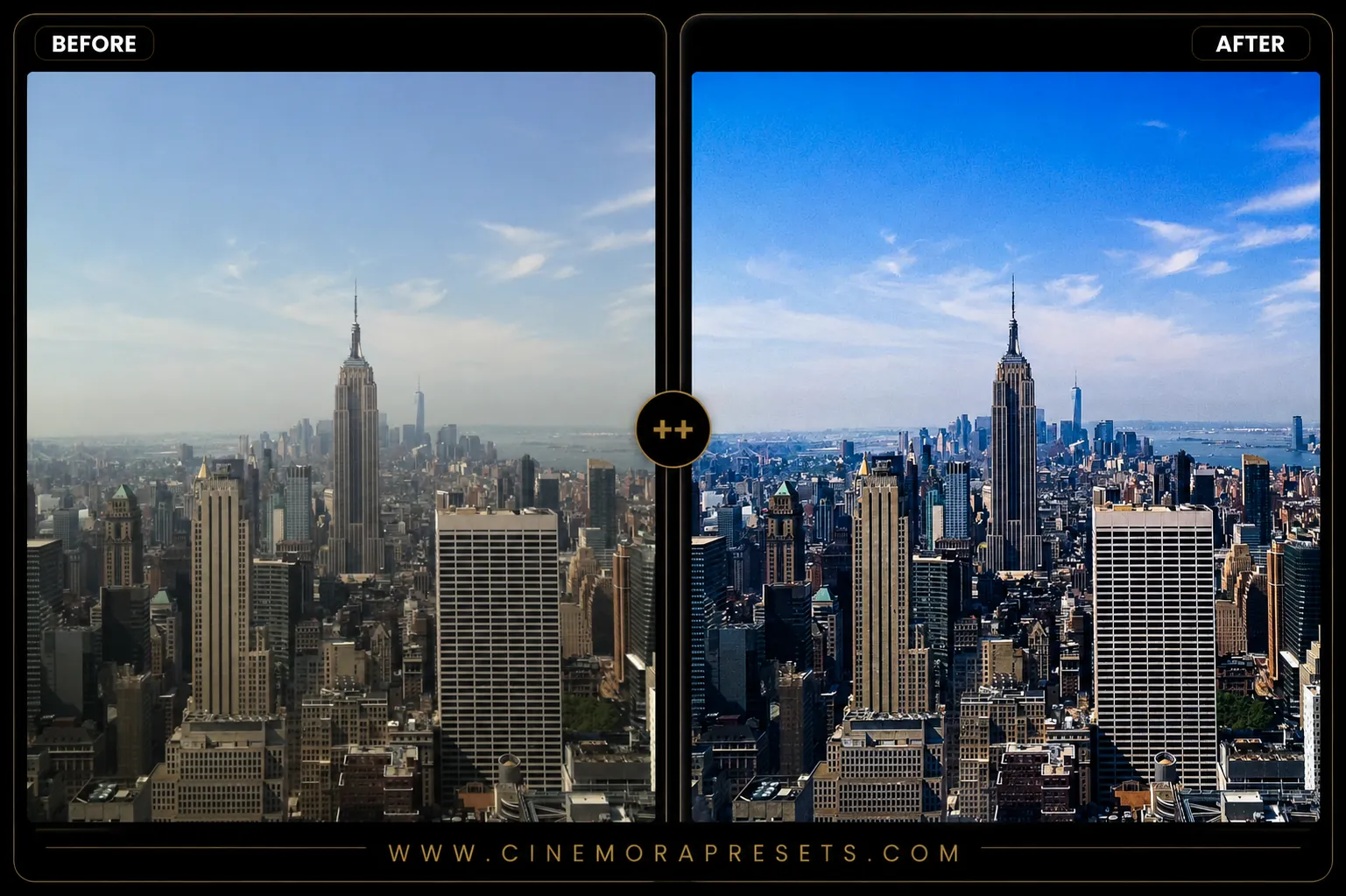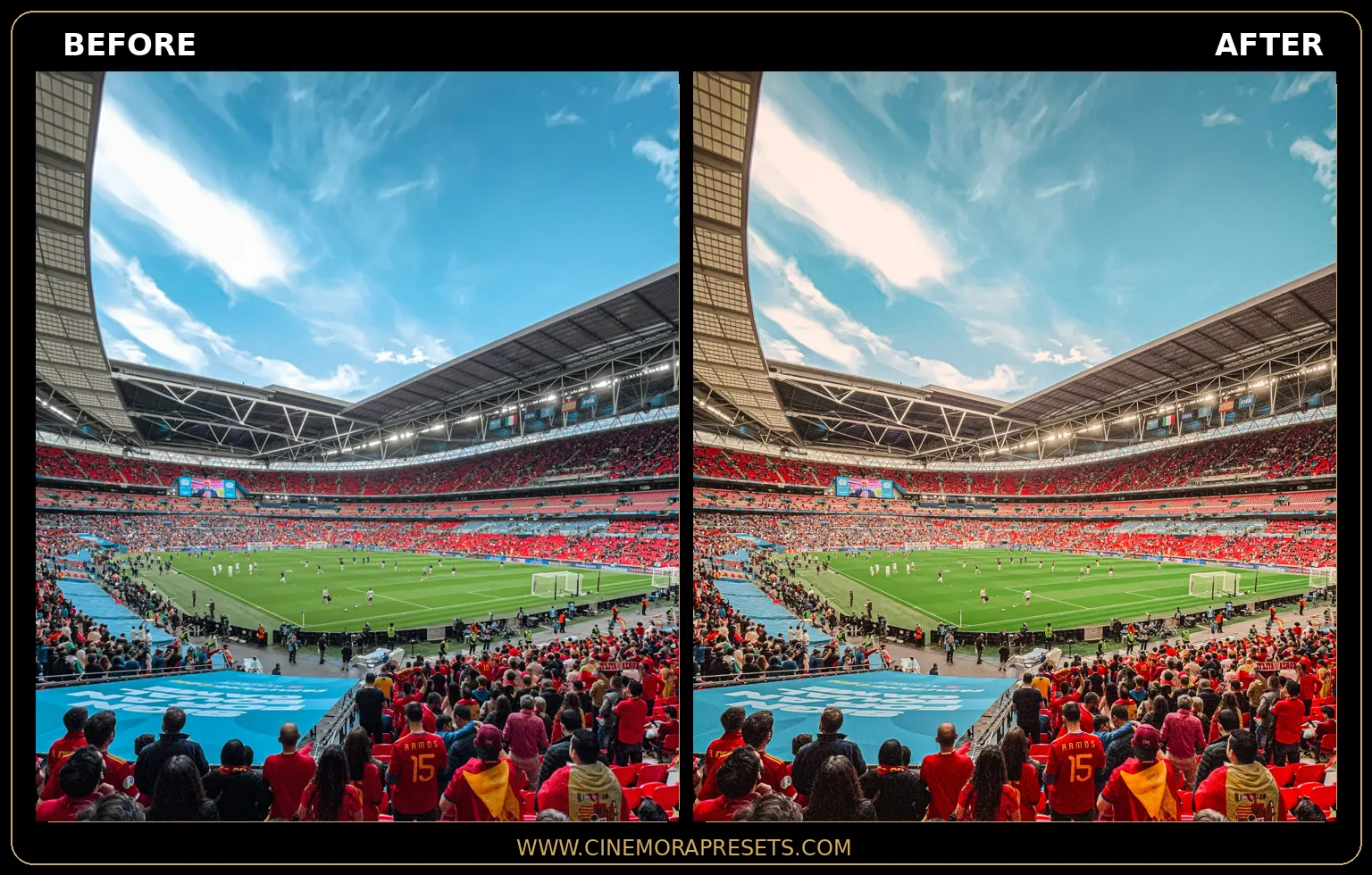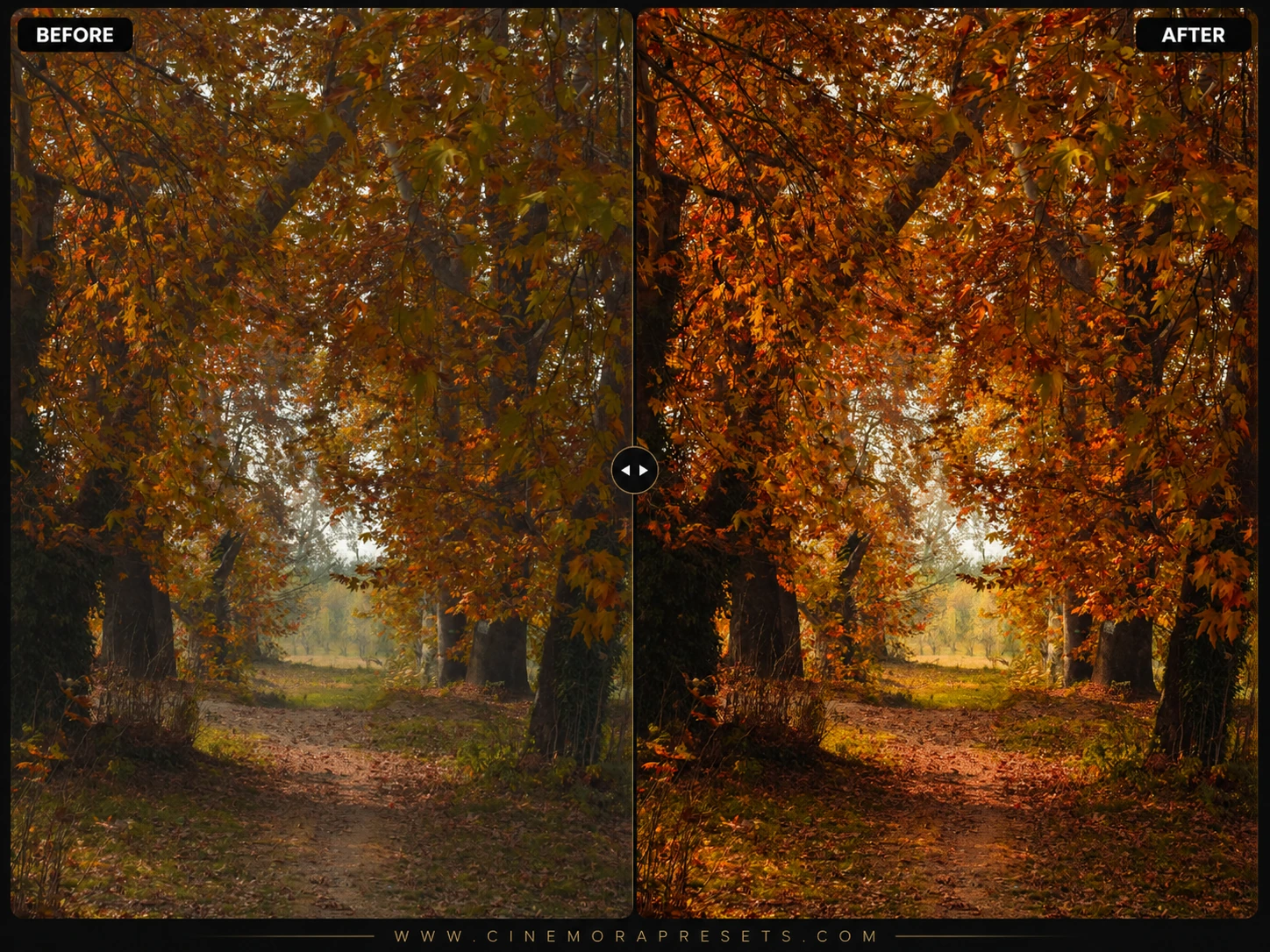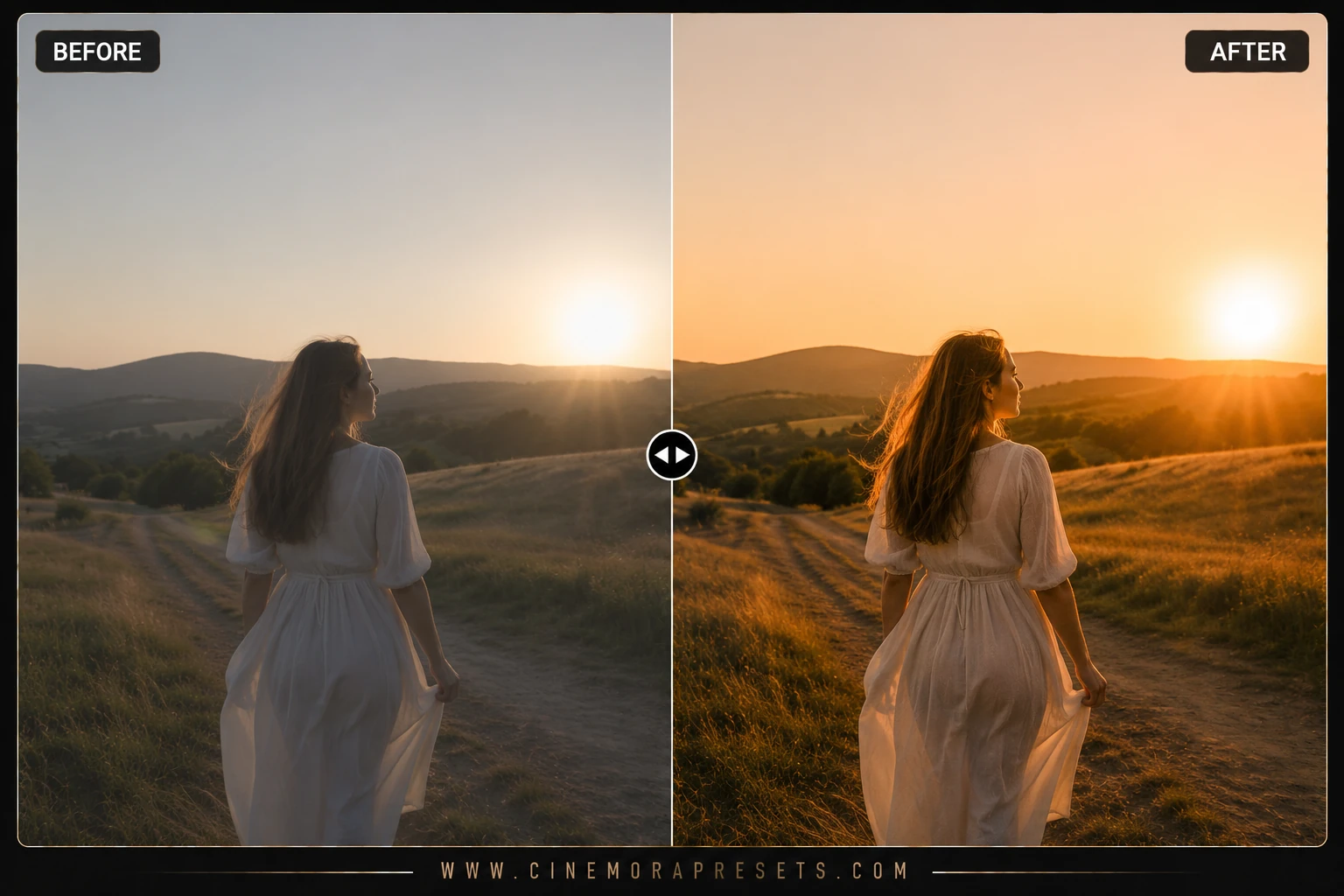
Golden hour is the most magical time of the day for outdoor photographers. The warm, low-angle sunlight casts gorgeous long shadows and wraps subjects in a brilliant glowing haze. But capturing this beauty in-camera is notoriously difficult—sun flares often wash out contrast and clip highlights. I spent months building these free Sunflare presets to solve this exact problem.
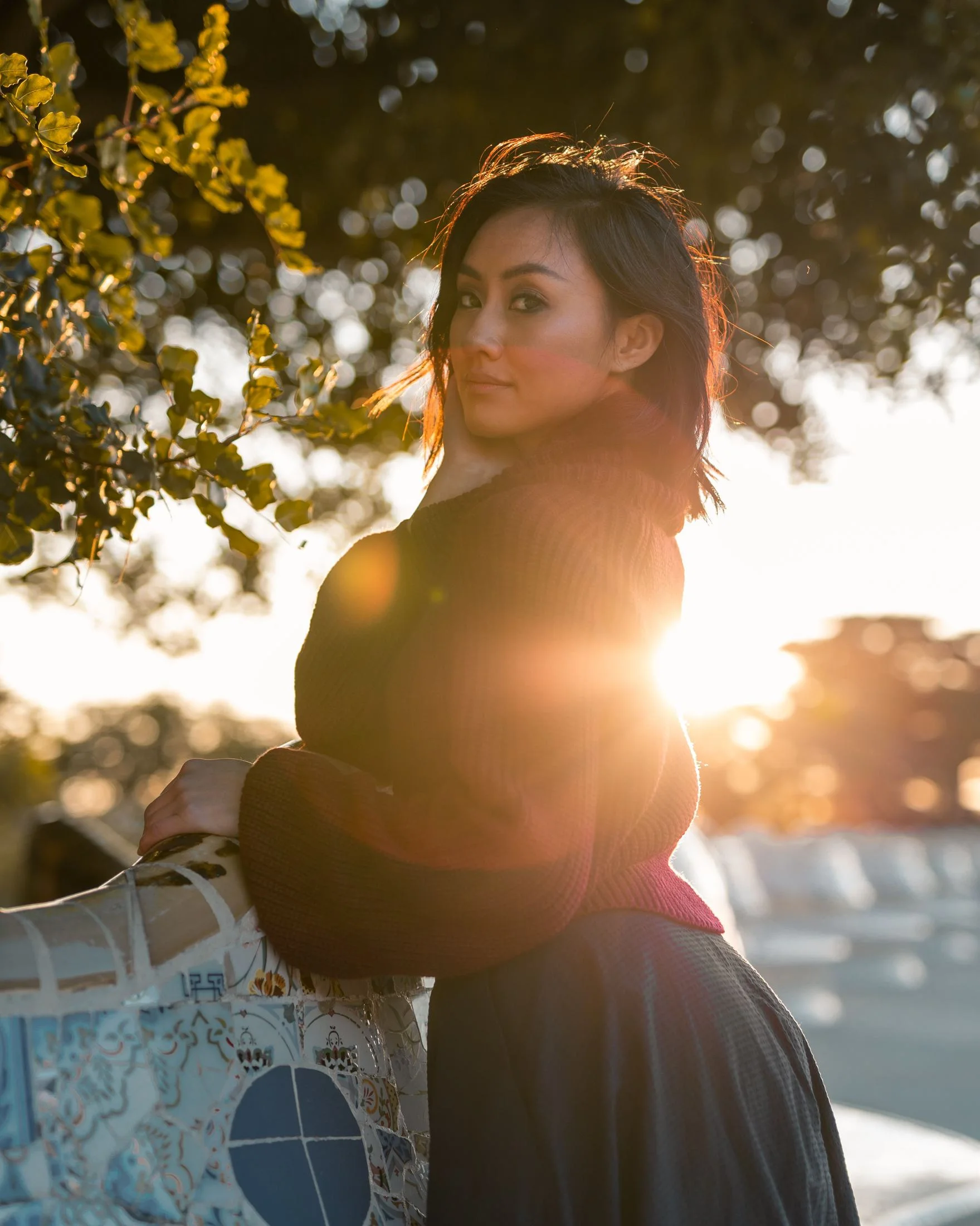
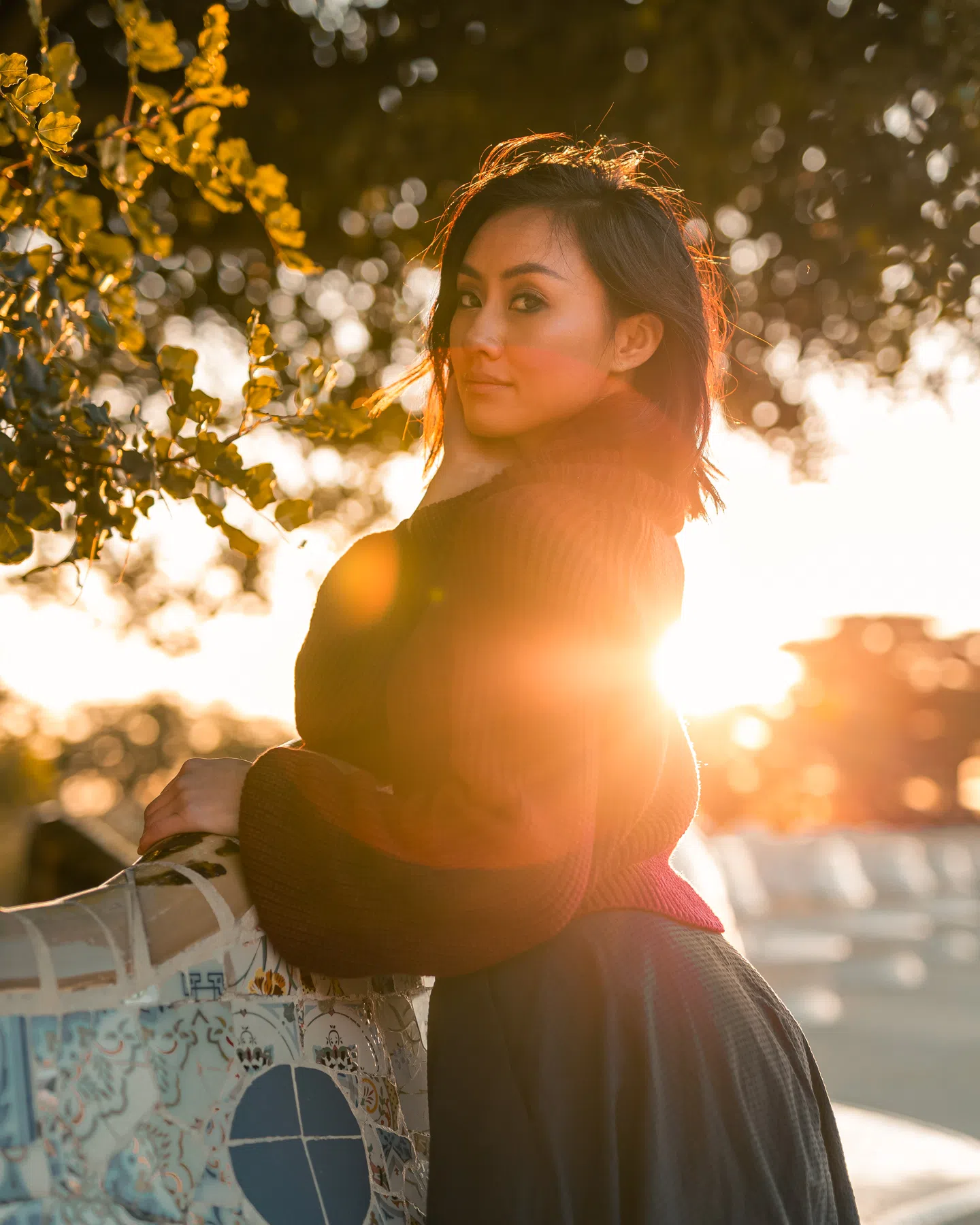
These filters are designed to surgically isolate and boost yellows, golds, and warm ambers while gently recovering backlit shadow details. They amplify lens flares and add a dream-like, ethereal sunbeam glow to outdoor shots without making the photo look artificial or overly yellow.
To keep your summer photography looking gorgeous on every screen, these presets are packaged in the universal XMP format. They apply identical golden profiles and highlight-softening adjustments seamlessly across both your mobile CC app and desktop Lightroom versions.
Master the Sunflare Aesthetic
Creating a beautiful, sun-drenched look is about soft lighting and glowing midtones. Follow these tips to master the golden hour look:
Golden Sunflare Lightroom Preset Settings & Slider Values
Exposure: -0.05 | Contrast: +14 | Highlights: -10 | Shadows: +15 | Whites: +5 | Blacks: -2 | Temp: +12 | Tint: +2 | Texture: +8 | Clarity: -6 | Saturation: -2
To get other warm, sun-kissed lighting looks, match these with our glowing Golden Hour presets.
1. Position Yourself Properly
To get the most out of these presets, you need to shoot backlit. Position your subject directly between you and the sun. Let the sunlight spill over their shoulders to create a natural rim-light that these presets will amplify.
2. Soften the Highlights
Golden hour sunlight can be intense. If your sky or highlights look too harsh, drag down the Highlights and Whites sliders. This introduces a soft, organic mist-like haze to the sunbeams rather than a hard digital clipping.
3. Use Selective Warmth Brushes
To make the sun flare look truly expensive, use a Radial Gradient in Lightroom, place it where the sun is exiting the frame, and slightly increase the Temp and Dehaze (negative) sliders to paint a soft glowing sunbeam.
Installation Guide
Setting up these presets on your phone or computer is very simple:
- Download the ZIP file containing the XMP preset files.
- If you need step-by-step instructions for your specific device, follow my guide on how to install Lightroom presets for instant setup help.
What's Included
This professional collection contains custom XMP presets crafted to elevate your photographic edits with a single click. Here is what is in your free download:
- Golden Glow Presets (magnifies warm backlighting, perfect for sunset portraits)
- Amber Sunbeam Presets (boosts warm tones in greens and browns, ideal for forest shots)
- Summer Flare Presets (creamy pastel highlights and bright, glowing skies)
Preset Style & Color Tone
The color tone focuses on boosting yellow/orange luminance, shifting green channels towards olive-gold, lifting midtones to illuminate backlit subjects, and injecting warm amber split-toning into highlights and shadows.
Best Photos for This Preset
Designed specifically for outdoor backlit photos shot during the golden hour (sunset and sunrise). Looks outstanding on portrait, travel, forest trail, and summer field photography. Avoid using these on flat overcast days or indoor flash shots, as the artificial warm cast won't fit.
After downloading, extract the ZIP file and import the XMP presets into Lightroom.