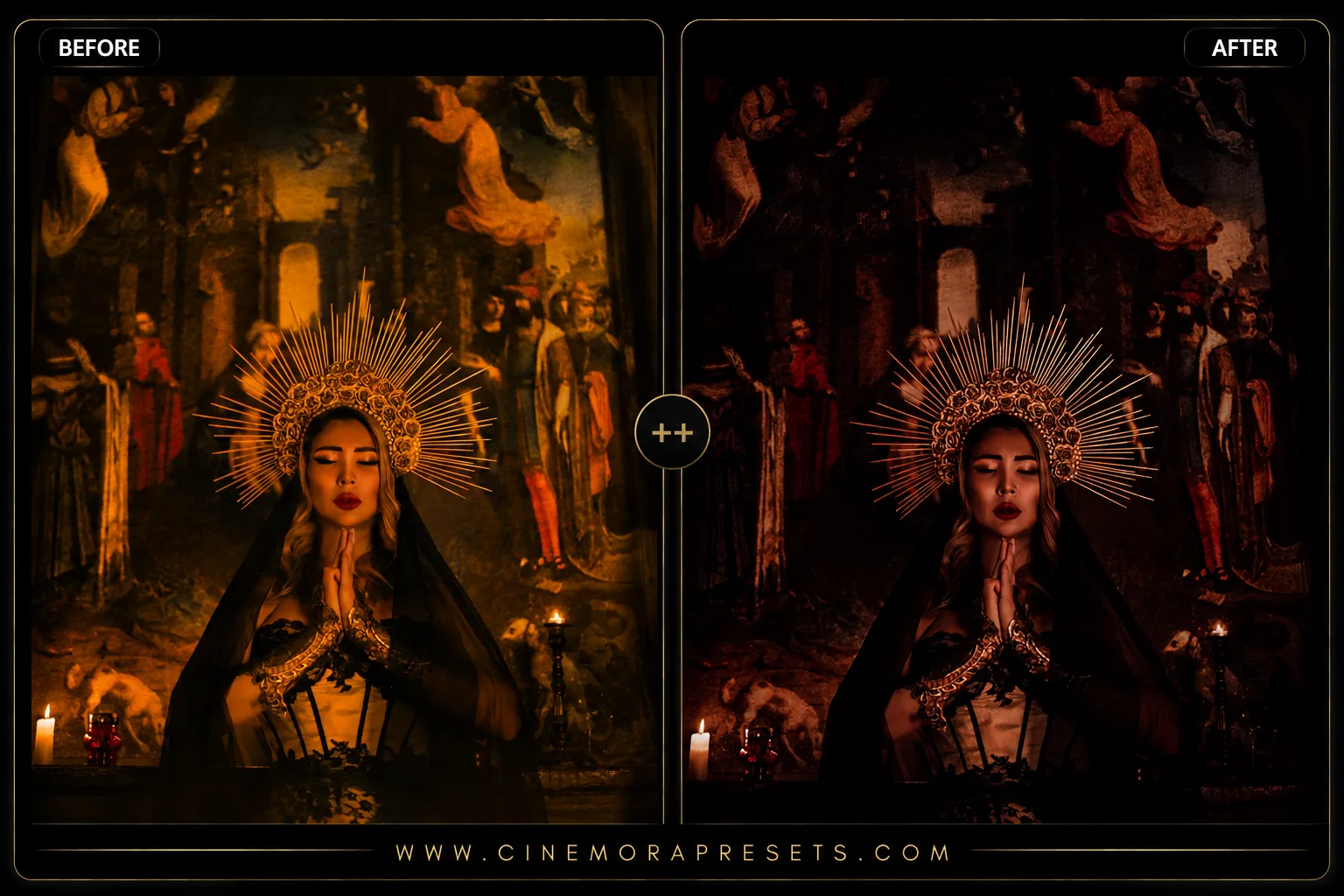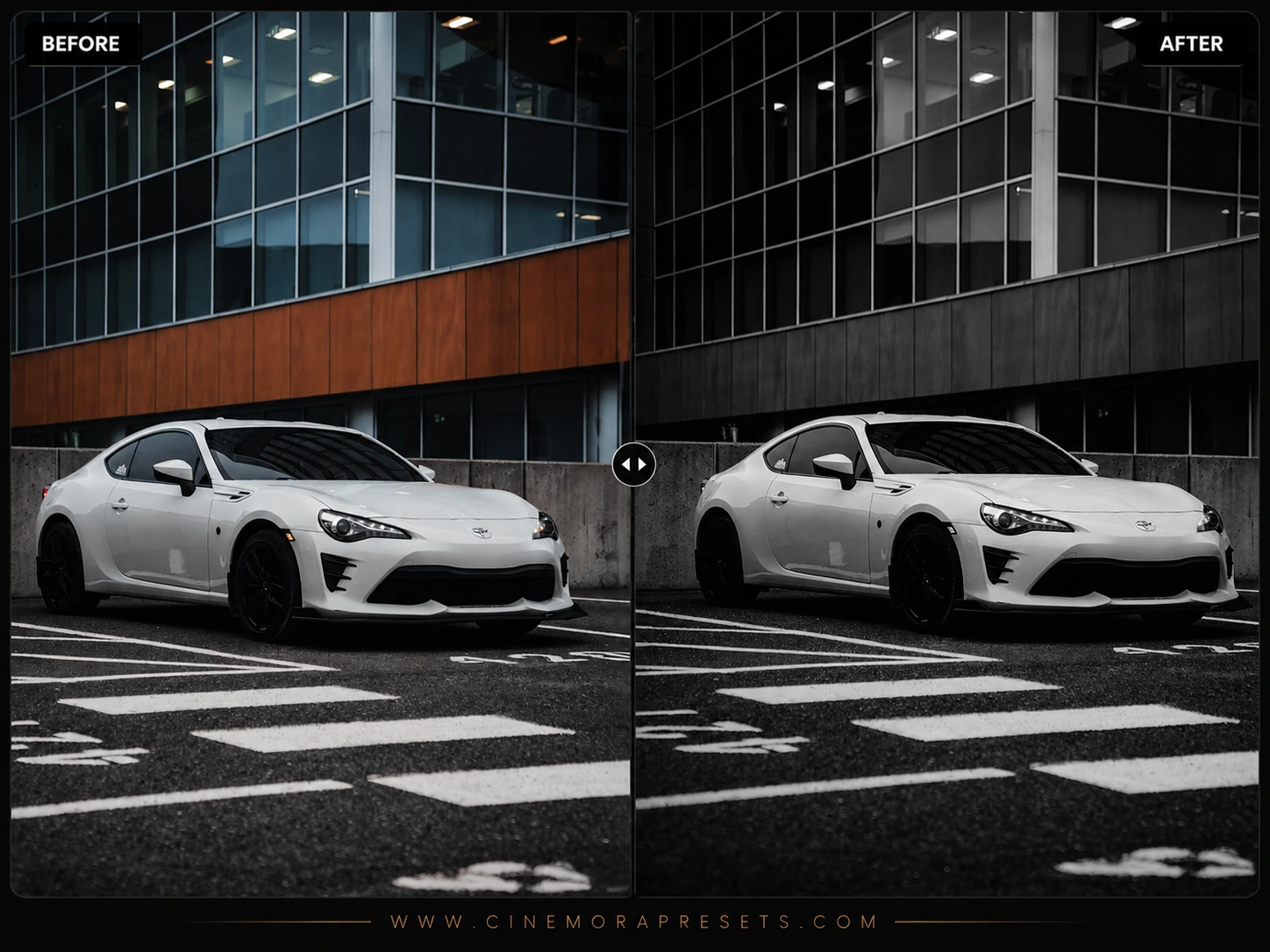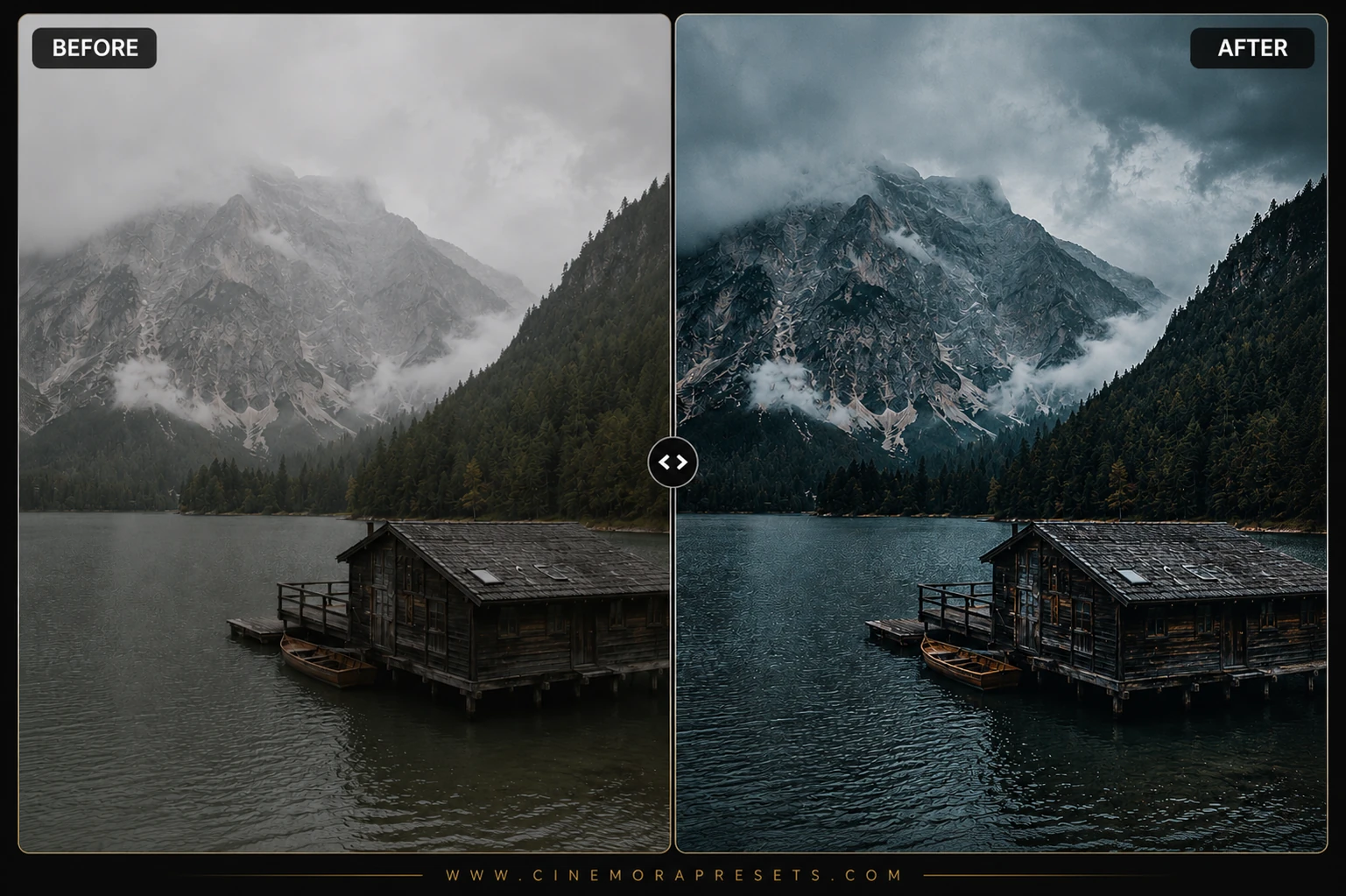
Raw digital cameras are designed to capture mathematically perfect, sharp, high-contrast images. But perfect contrast can often look clinical and sterile. Faded, matte shadows are the secret weapon of high-fashion editorials and vintage photography. I created this pack of free Shadow Fade presets to help you achieve that gorgeous, velvet-matte haze instantly.
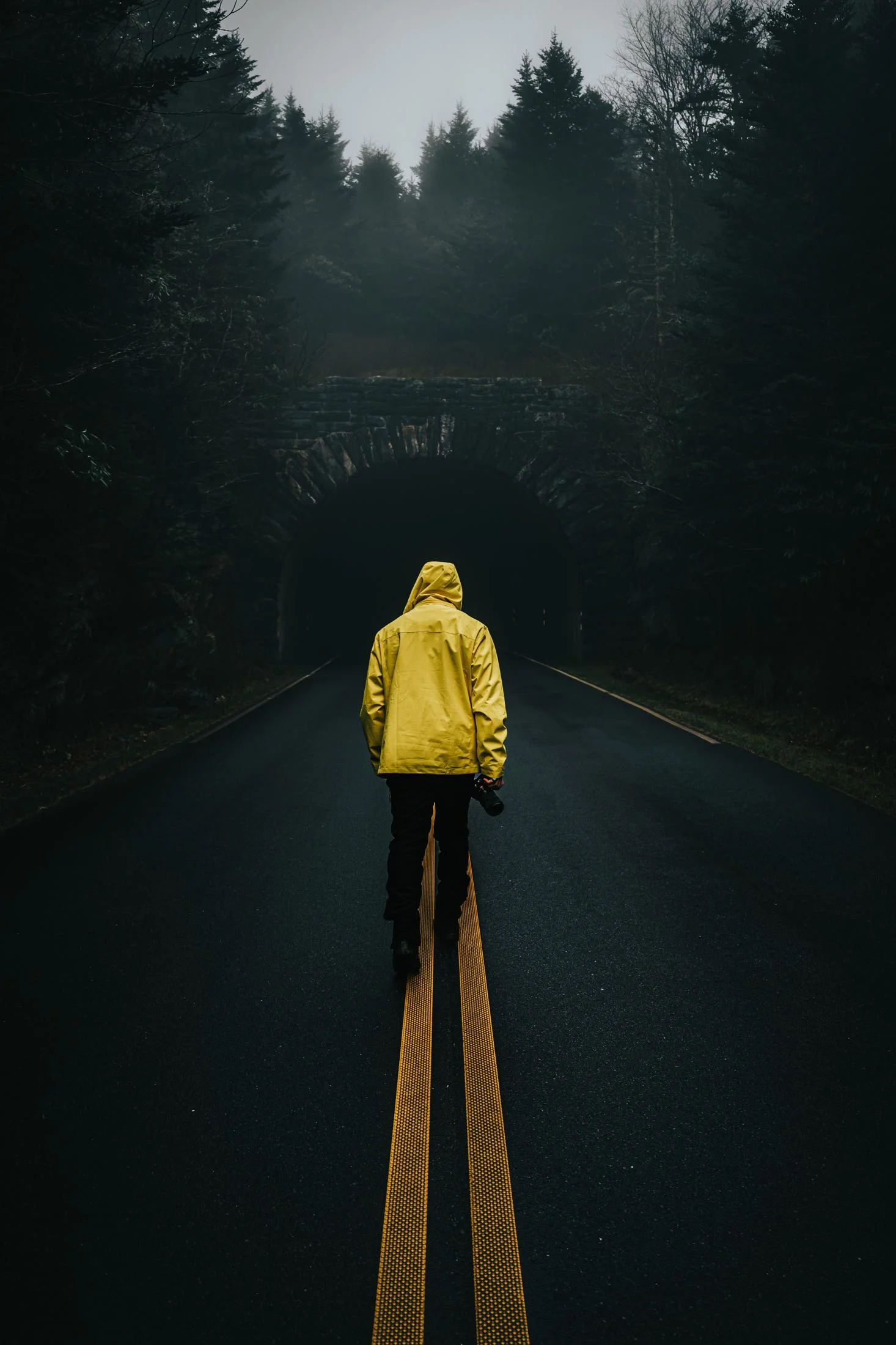
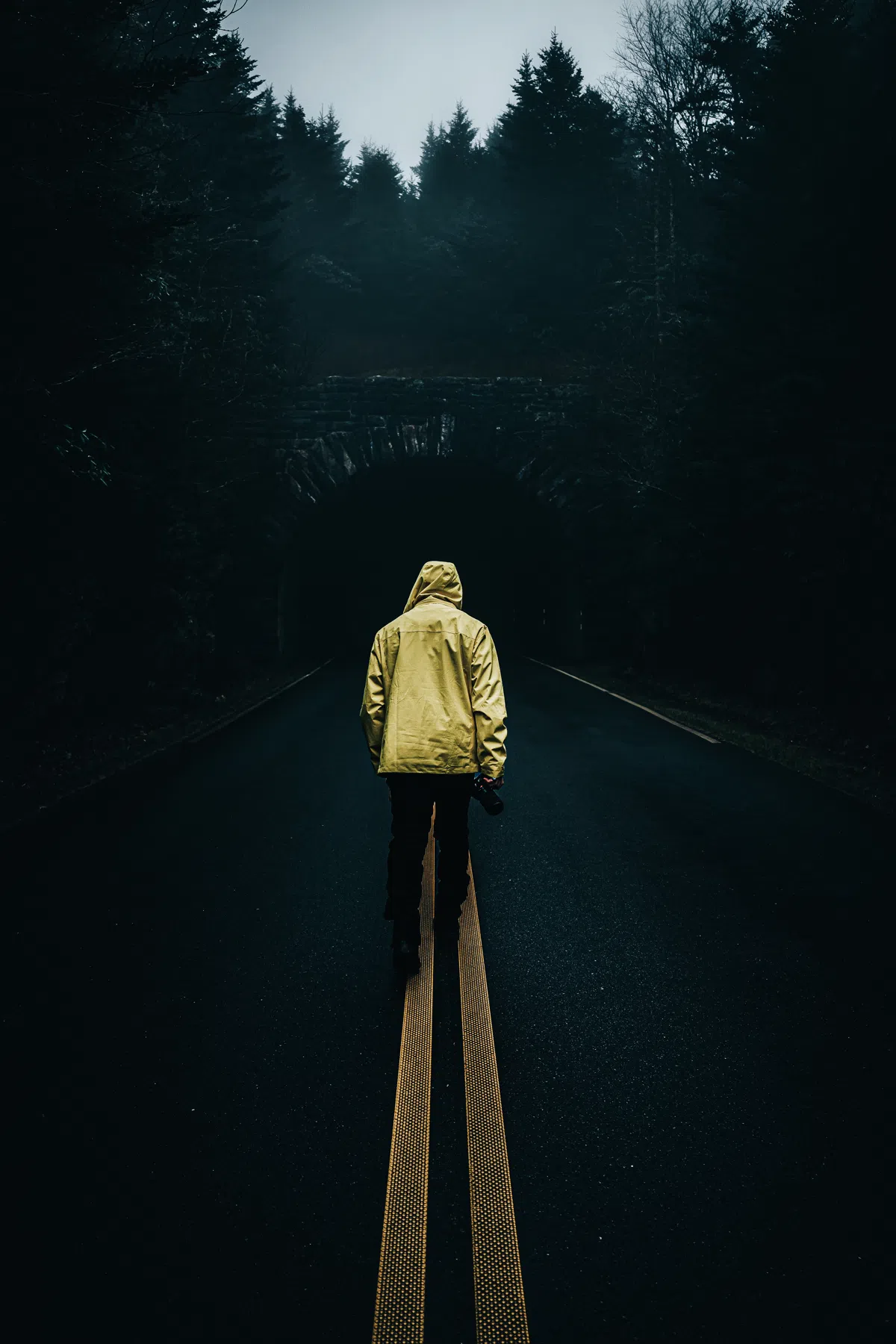
These filters work by lifting the absolute black point on the RGB Tone Curve, turning harsh, pitch-black shadows into soft, smoky charcoal tones. It gives your photos an organic, high-end editorial feel that looks incredibly polished on a modern social media feed.
To ensure your visual aesthetic stays beautifully unified, these free atmospheric presets are delivered in the standard, universal XMP format. They apply identical faded curves and moody color maps across both your Lightroom mobile app and desktop catalog.
Master the Shadow Fade Aesthetic
The shadow fade aesthetic is a delicate balance of softness and detail. Use these professional tips to get the perfect velvety look:
Soft Matte Shadow Lightroom Preset Settings & Slider Values
Exposure: 0.00 | Contrast: +12 | Highlights: -15 | Shadows: +18 | Whites: 0 | Blacks: +6 | Texture: +2 | Clarity: -8 | Saturation: -14 | Grain: +4
If you love this faded matte look, try our classic Analog Film presets.
1. Fine-Tune the Tone Curve
Lightroom's Point Curve is where the matte magic happens. If you want more of a faded, misty look, open the Tone Curve panel, select the Point Curve, and drag the extreme bottom-left corner slightly upwards.
2. Boost Texture and Contrast
Because faded shadows reduce the overall dynamic contrast, your subject can sometimes look a bit flat. To restore detail without losing the soft matte shadows, increase the Texture slider (+10 to +20) or slightly increase overall Contrast.
3. Keep an Eye on Exposure
Faded blacks look best when the midtones are bright and clean. If your photo looks too muddy, slightly increase the Exposure slider and decrease the Blacks slider to keep a strong, dynamic highlight-to-shadow contrast.
Installation Guide
Setting up these presets on your phone or computer is very simple:
- Download the ZIP file containing the XMP preset files.
- If you need step-by-step instructions for your specific device, follow my guide on how to install Lightroom presets for instant setup help.
What's Included
This professional collection contains custom XMP presets crafted to elevate your photographic edits with a single click. Here is what is in your free download:
- Matte Charcoal Presets (heavy fade, perfect for high-fashion and urban shots)
- Soft Velvet Presets (creamy shadows, warm midtones, and soft highlights)
- Moody Mist Presets (cool shadow undertones and lifted blacks, perfect for foggy landscapes)
Preset Style & Color Tone
Features heavily lifted shadow blacks (flat matte curve), slightly desaturated primaries to create a mature color palette, and subtle cool shadow undertones that contrast beautifully against warm skin midtones.
Best Photos for This Preset
Perfect for high-contrast sunlight portraits, moody minimalist interiors, urban street photography, and atmospheric architecture. Avoid using these on photos that are already extremely flat or low-contrast, as the double fade can wash out too much detail.
After downloading, extract the ZIP file and import the XMP presets into Lightroom.